
It’s a moment that can send a shiver down anyone’s spine: you open a crucial document, only to be met with an error message or garbled text. File corruption happens, and it can be incredibly frustrating, especially when the document contains vital information. Over my years working with software, I've encountered my fair share of corrupted files, from simple text documents to complex spreadsheets and presentations.
The good news is that not all hope is lost when a file becomes damaged. With the right approach, many corrupted documents can be repaired, allowing you to restore your valuable data. This guide will walk you through the essential troubleshooting steps and techniques to help you fix broken files.
Table of Contents
Understanding File Corruption
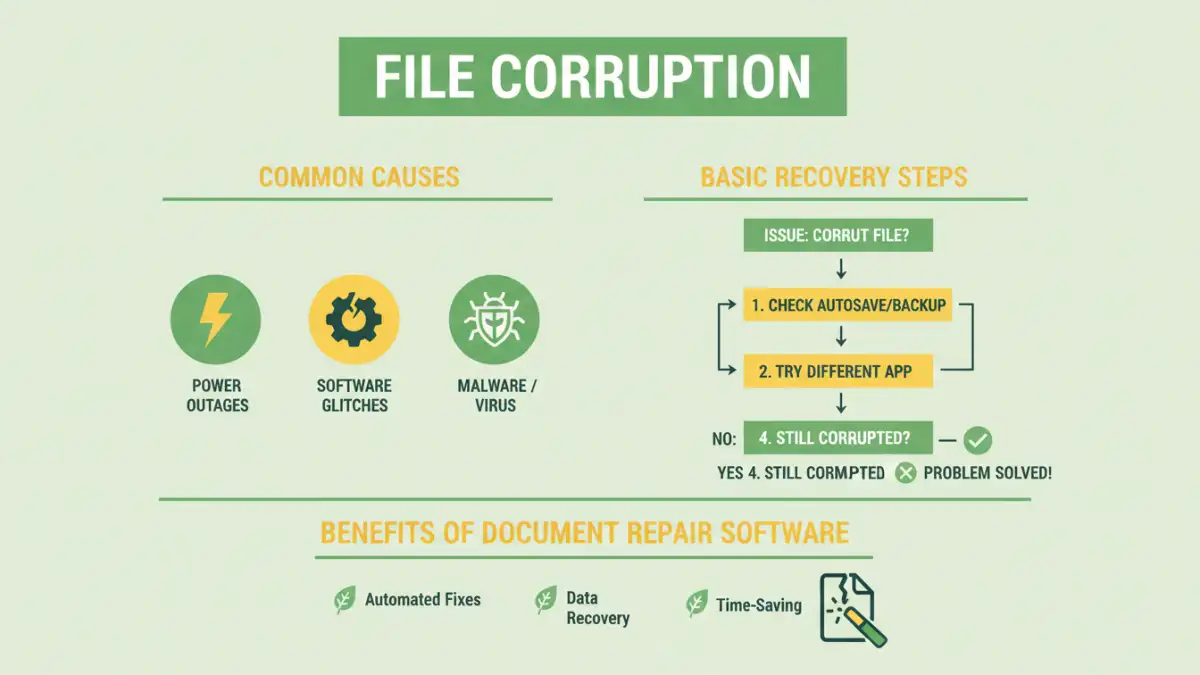
File corruption occurs when a file’s data becomes incomplete or damaged, making it unreadable by the software it belongs to. This can happen for various reasons, including sudden power outages during saving, incomplete file transfers, software glitches, or even hard drive errors. Recognizing the signs is the first step toward recovery.
Common Symptoms
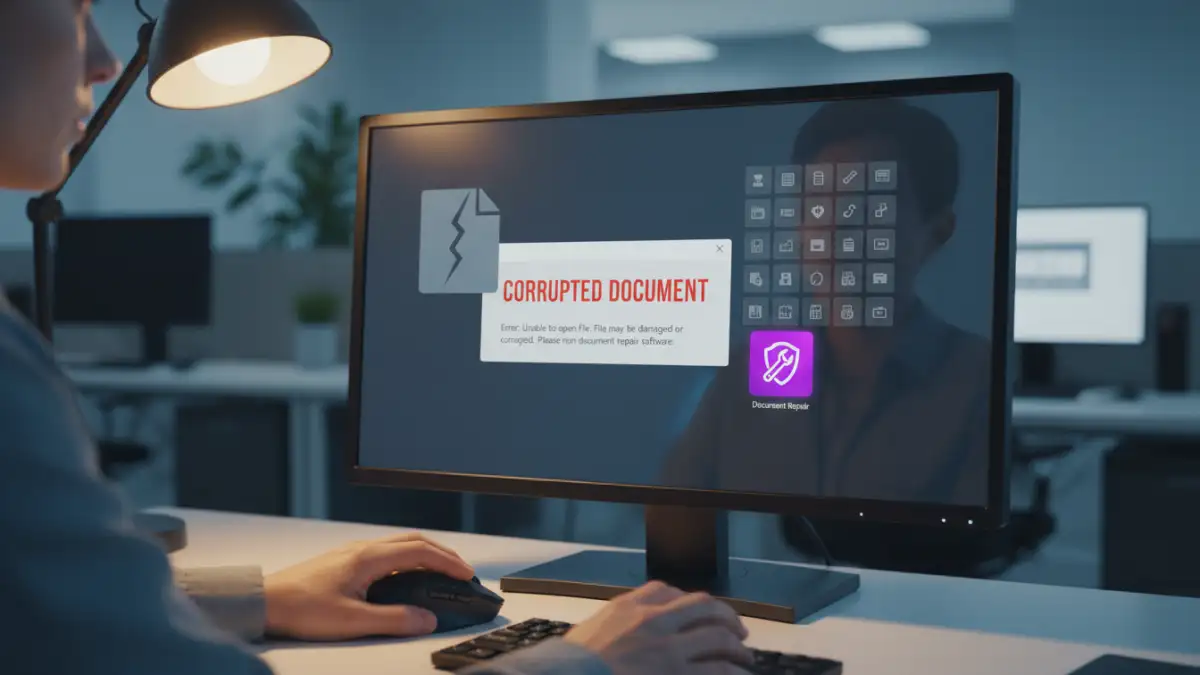
Symptoms of a damaged document can range from minor display anomalies to complete inaccessibility. You might encounter error messages when trying to open the file, notice that parts of the document are missing or replaced with random characters, or find that the application crashes when you attempt to load it. Sometimes, the file might appear to open, but the content is nonsensical.
Basic Recovery Methods
Before diving into complex solutions, there are several fundamental steps you can try. These methods are often effective for less severe cases of file damage and require minimal technical expertise. They leverage built-in features of applications or simple file manipulation techniques.
Using Previous Versions or AutoSave
Many applications, like Microsoft Word or Excel, have built-in AutoSave and AutoRecover features. If the corruption happened recently, check if an earlier version of the document is available. For Windows users, right-clicking the file and selecting 'Properties' then 'Previous Versions' can sometimes reveal a recovery option. Similarly, check your application's AutoRecover settings for unsaved or partially saved versions.
Opening in Different Software
Sometimes, a file might be corrupted in a way that a specific application struggles with, but another can interpret it. For example, if a Word document won't open, try importing it into a word processor from a different suite or even a plain text editor. This can sometimes extract the readable text, even if formatting is lost.
Advanced Recovery Techniques
When basic methods fail, more advanced techniques might be necessary. These often involve specialized tools or more involved troubleshooting processes. These approaches are typically employed when the data is critical and simpler methods have proven insufficient.
Utilizing Document Repair Software
There are numerous third-party document repair software solutions available designed specifically to tackle file corruption. These programs can scan damaged files, identify errors, and attempt to reconstruct the original data. When looking for document repair software, research reputable options that support the file type you need to restore. This is often the most effective route for severe corruption.
Restoring from Backups
The most reliable method for recovering a damaged document is often restoring it from a recent backup. If you regularly back up your files to an external drive, cloud storage, or a network location, you can simply revert to a previous, uncorrupted version of the file. This is why maintaining a consistent backup strategy is paramount for data protection.
Preventative Measures
While fixing a damaged document is important, preventing corruption in the first place is even better. Implementing good data hygiene practices can significantly reduce the risk of encountering these issues. Being proactive saves time, effort, and potential data loss.
Regular Backups
As mentioned, regular backups are your first line of defense. Automate your backup process whenever possible to ensure consistency. Store backups in multiple locations, including off-site, to protect against physical disasters.
Safe File Handling
Always ensure files are completely saved before closing applications or shutting down your computer. Avoid unplugging USB drives without safely ejecting them, as this can corrupt files being transferred. Keep your operating system and software updated, as patches often address stability issues that can lead to corruption.
Comparison Table: Document Repair Methods
| Method | Pros | Cons | Best For |
|---|---|---|---|
| Previous Versions/AutoSave | Free, built-in functionality | Only works if enabled and a previous version exists | Minor corruption, recent edits |
| Opening in Different Software | Free, no extra tools needed | May result in data loss or formatting issues | Extracting readable text |
| Document Repair Software | Specialized algorithms for complex issues | Can be costly, requires installation, effectiveness varies | Severe corruption, critical data |
| Restoring from Backups | Most reliable, full data recovery | Requires a pre-existing backup, might not have the latest version | Any level of corruption, if backups are current |