Have you ever needed to secure sensitive documents but weren't sure how? Protecting personal or professional information from unauthorized access is crucial in today's digital landscape. Whether it's financial records, personal photos, or confidential work documents, ensuring they remain private is paramount. This guide provides a straightforward checklist to help beginners start encrypting their sensitive files effectively.
It's not as complicated as it might sound. We'll break down the process into manageable steps, covering the essentials you need to know to keep your data safe. My goal is to demystify file encryption, making it accessible for everyone, regardless of their technical background.
Table of Contents
Understanding Encryption Basics
At its core, encryption is the process of converting readable data into an unreadable format, known as ciphertext. This process requires a 'key' – essentially a password or a complex algorithm – to convert the ciphertext back into its original, readable form. Without the correct key, the data remains inaccessible to anyone who might intercept it.
Why Encrypt?
The primary reason for encrypting sensitive files is to prevent unauthorized access. If your device is lost or stolen, or if your data is breached, encryption acts as a powerful barrier. It ensures that even if someone gains physical or digital access to your files, they cannot understand their contents without the decryption key.
Choosing Your Encryption Method

There are several ways to encrypt your files, each with its own advantages. For beginners, it's often best to start with methods that are integrated into your operating system or readily available through user-friendly software. This avoids the complexity of advanced cryptographic tools while still providing robust security.
Built-in Operating System Tools
Most modern operating systems, like Windows and macOS, offer built-in file encryption features. For example, Windows has Encrypting File System (EFS), and macOS has FileVault for full-disk encryption or the ability to create encrypted disk images. These are generally straightforward to use and don't require installing additional software.
Third-Party Software
Beyond built-in options, numerous third-party applications specialize in file encryption. Tools like VeraCrypt (free and open-source) or commercial options offer more advanced features, such as creating encrypted containers or encrypting specific folders. These can provide a higher level of security or more granular control over your encrypted files.
Your Step-by-Step Encryption Checklist
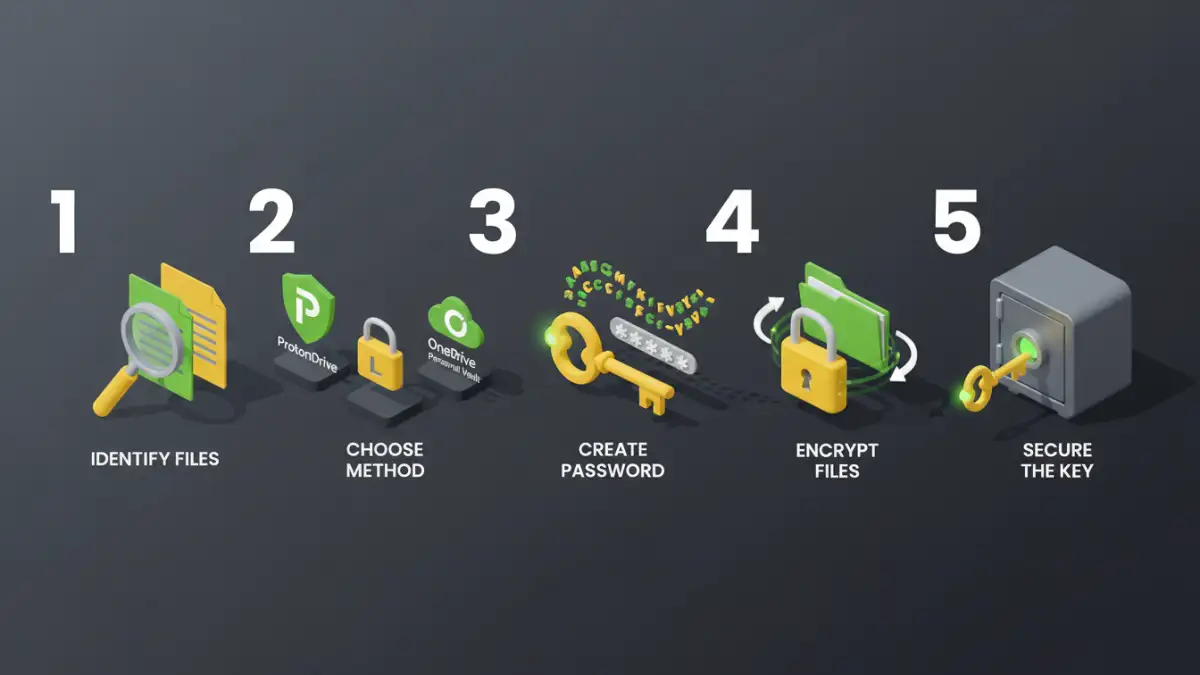
Implementing file encryption doesn't have to be daunting. Follow this checklist to get started:
- Identify Sensitive Files: Determine which files absolutely need protection. Think about documents containing personal identifiable information (PII), financial data, private communications, or intellectual property.
- Choose Your Tool/Method: Based on your needs and technical comfort level, select an encryption method. For simple file encryption, your OS's built-in tools might suffice. For more robust protection, consider third-party software.
- Create a Strong Encryption Key/Password: This is the most critical step. Use a long, complex password that combines uppercase and lowercase letters, numbers, and symbols. Avoid using easily guessable information like birthdays or common words. Consider using a password manager to generate and store this key securely.
- Encrypt the Files: Follow the instructions for your chosen method to encrypt the identified files or folders. This might involve right-clicking a file and selecting an encryption option, or using a dedicated application to create an encrypted volume.
- Test Your Encryption: After encrypting, try to access the files. Ensure you can decrypt them successfully using your key/password. This confirms your encryption is working correctly.
- Secure Your Key/Password: Store your encryption key or password in a safe place, separate from the encrypted files. A reputable password manager is an excellent option. Never store it on the same device or in an easily accessible cloud location.
- Regularly Review and Update: Periodically review your encrypted files and update your encryption methods or passwords as needed, especially if new threats emerge or your data's sensitivity changes.
Essential Best Practices
Beyond the basic steps, adopting good habits will significantly enhance your data security. These practices are crucial for maintaining the integrity and confidentiality of your encrypted files over time.
Backup Your Data
Always maintain regular backups of your important files, both encrypted and unencrypted (if applicable for recovery). If your primary encrypted file becomes corrupted or you lose your decryption key, a backup can be a lifesaver. Ensure your backups are also stored securely.
Understand Encryption Strength
Not all encryption is created equal. Modern encryption standards like AES (Advanced Encryption Standard) are considered very secure. Be wary of older or proprietary encryption methods that may have known vulnerabilities. Stick to well-established, robust algorithms.
Be Mindful of Metadata
While encryption protects file content, it doesn't always hide metadata associated with the file (like creation dates, author information, or file paths). For extreme privacy, consider using tools that can strip metadata before encryption.
Common Mistakes to Avoid
Many beginners stumble over a few common pitfalls. Being aware of these can save you a lot of trouble down the line.
Forgetting Your Password
This is the most common and frustrating mistake. If you forget your encryption password and haven't backed up your data or key, your files are likely lost forever. Invest time in creating a memorable yet strong password and storing it securely.
Using Weak Passwords
A password like '123456' or 'password' offers virtually no protection. Attackers can easily guess or brute-force weak passwords, rendering your encryption useless. Always aim for complexity and length.
Not Backing Up Encrypted Files
While encrypting adds a layer of protection, it doesn't replace the need for backups. File corruption or hardware failure can occur, and without a backup, you risk losing everything. Ensure your backup strategy is sound.
Comparison Table: Encryption Methods for Beginners
| Method | Ease of Use | Security Level | Key Management | Best For |
|---|---|---|---|---|
| Built-in OS Tools (EFS, FileVault) | High | Good to Very Good | Managed by OS, password tied to user login | Everyday users, basic protection |
| Encrypted Disk Images (macOS Disk Utility) | Medium | Very Good | User-defined password per image | Securing groups of files, portable storage |
| Third-Party Software (e.g., VeraCrypt) | Medium to High | Excellent | User-defined password, separate keys/containers | Advanced users, high-security needs, full disk/partition encryption |
| Online Encryption Tools | Very High | Variable (depends on service) | User-defined password, often temporary | Quick, one-off encryption of non-critical files |