
Working with sensitive information means you need to ensure your documents are protected. PDFs are a common format for sharing everything from contracts and financial reports to personal records. Ensuring these files are secure is paramount, not just for compliance, but for safeguarding privacy and preventing unauthorized access.
Over the years, I've seen firsthand how a lack of proper document security can lead to significant issues. It's not just about preventing casual snooping; it's about building robust defenses against determined individuals or malicious actors. This is why having a clear understanding of how to approach securing PDF documents is so important.
Table of Contents
Understanding the Basics of PDF Security
At its core, securing a PDF involves controlling who can access, view, edit, or print its content. This is typically achieved through encryption and access controls, most commonly password protection. Different levels of protection can be applied, ranging from a simple open password that prevents viewing without authorization to more granular restrictions on copying, printing, or modifying content.
Why PDF Security Matters
The portability and ubiquity of PDFs make them ideal for document sharing. However, this ease of use can be a double-edged sword if not managed correctly. Sensitive data, whether personal, financial, or proprietary, needs layers of protection to prevent breaches. Implementing strong security measures is crucial for maintaining trust and complying with data privacy regulations.
The Essential PDF Security Checklist
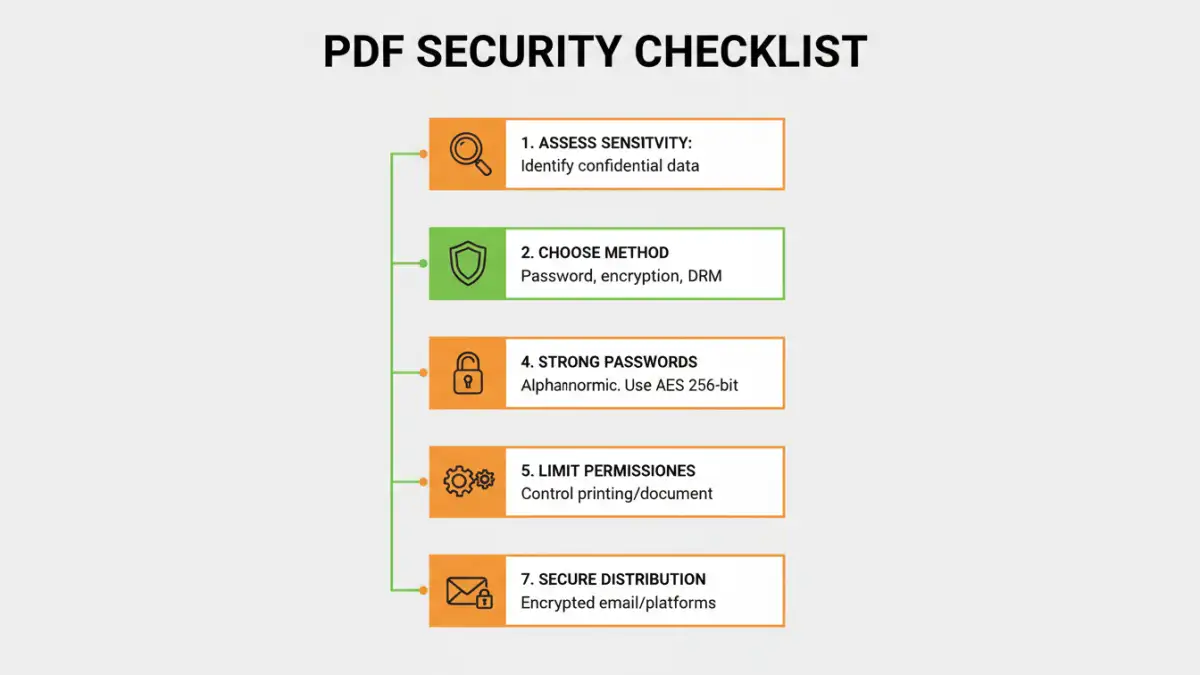
When I approach securing a document, I follow a structured checklist to ensure no critical step is missed. This methodical approach helps guarantee comprehensive protection for any sensitive PDF file.
1. Assess Information Sensitivity
Before applying any security, determine how sensitive the information within the PDF is. Is it public, internal, confidential, or highly restricted? This will dictate the level of protection needed. A casual flyer requires less security than a signed contract or a medical record.
2. Choose the Right Protection Method
Based on the sensitivity assessment, select the appropriate method. For most users, password protection is the primary tool. Consider whether you need to restrict viewing, editing, or printing. For highly sensitive documents, consider additional layers of security beyond basic password protection.
3. Implement Strong Passwords
If using passwords, ensure they are strong and unique. A strong password typically includes a mix of uppercase and lowercase letters, numbers, and symbols, and is of sufficient length (at least 12 characters). Avoid easily guessable passwords like names, dates, or common words.
4. Understand Encryption Standards
Most PDF security tools use AES (Advanced Encryption Standard) encryption, often AES-128 or AES-256. Higher bit encryption offers stronger security. Be aware of the encryption standard used by your chosen tool, as it impacts the robustness of the protection.
5. Limit Permissions Granularly
If your software allows, set specific permissions. Can users print? Can they copy text? Can they edit the document? Restricting these actions further secures your document even if the password is compromised or if someone needs to share it internally.
6. Consider Digital Signatures
For verifying the authenticity and integrity of a document, digital signatures are invaluable. They ensure the document hasn't been tampered with since it was signed and confirm the identity of the signer. This is distinct from password protection but complements overall document security.
7. Securely Distribute Passwords
Sharing the password securely is as critical as setting it. Avoid sending passwords via unencrypted email. Use secure messaging apps, phone calls, or password manager sharing features. Inform recipients about the importance of keeping the password confidential.
Tools and Methods for Protection
There are several ways to implement security measures for your PDFs, ranging from built-in operating system features to dedicated software and online services. My experience suggests that combining methods often yields the best results.
Built-in PDF Viewers
Many PDF viewers, like Adobe Acrobat Reader, offer basic password protection features. You can usually set an owner password to restrict editing and printing, and an open password to prevent viewing. This is a good starting point for many users.
Dedicated Desktop Software
For more advanced control, dedicated PDF editing software provides a wider array of security options. These tools often support stronger encryption, batch processing, and more granular permission settings. Examples include Adobe Acrobat Pro, Foxit PhantomPDF, and Nitro Pro.
Online PDF Security Tools
Numerous websites offer free or paid services to password-protect or encrypt PDFs. While convenient for quick tasks, exercise caution regarding privacy. Ensure the service uses strong encryption and has a clear privacy policy before uploading sensitive documents. Some reputable services offer robust security, while others may pose risks.
Password Managers
While not directly used for encrypting the PDF itself, password managers are crucial for generating and storing strong, unique passwords. Using a complex password generated by a manager significantly enhances the security of your protected PDF files.
Advanced Tips and Best Practices
Beyond the basic checklist, several advanced strategies can further bolster your document safety.
Regularly Review Permissions
If you frequently update or re-share documents, periodically review the security settings. Ensure that permissions are still appropriate for the current audience and context. What was secure last month might need adjustments today.
Use Watermarks
Adding watermarks, especially 'Confidential' or 'Draft', can deter unauthorized sharing and clearly label the document's status. This is often an option in professional PDF software.
Consider File Encryption for Storage
For extremely sensitive files, consider encrypting the entire file or folder at the operating system level (e.g., BitLocker for Windows, FileVault for macOS) before even placing the PDF inside. This adds an extra layer of protection, especially if the device itself is compromised.
Educate Your Recipients
Ensure anyone receiving your secured documents understands why they are protected and how to handle them appropriately. Clear communication can prevent accidental breaches and misuse of information.
Common Misconceptions
There are a few common misunderstandings about securing PDF documents that can lead to a false sense of security.
Myth: Password Protection is Unbreakable
While strong passwords and encryption make unauthorized access very difficult, they are not entirely unbreakable. Brute-force attacks and sophisticated cracking tools can, over time, potentially break weak passwords. This reinforces the need for strong, unique passwords.
Myth: All Online PDF Tools are Equal
The security and privacy offered by online tools vary significantly. Some use strong encryption and have robust privacy policies, while others may be less secure or even malicious. Always research and choose reputable services for sensitive data.
Comparison Table: PDF Security Methods
| Method | Ease of Use | Security Strength | Control Granularity | Best For |
|---|---|---|---|---|
| Built-in Viewer (e.g. Adobe Reader) | High | Moderate (depends on password strength) | Basic (Open/Owner Password) | Everyday users needing basic protection |
| Desktop Software (e.g. Adobe Acrobat Pro) | Moderate | High (AES encryption, granular permissions) | High (Edit, Print, Copy, etc.) | Professionals, businesses, complex security needs |
| Online Tools | Very High | Variable (depends on service) | Limited to moderate | Quick, non-sensitive document protection |
| File/Folder Encryption (OS Level) | Moderate | Very High (system-level encryption) | N/A (encrypts entire file/folder) | Highly sensitive documents stored locally |