Working with sensitive documents often involves navigating various security features, and sometimes, these features can interact in unexpected ways with different software versions. This is particularly true when older file formats or specific application settings are involved. Ensuring your data remains secure requires a thorough understanding of how your software handles these nuances, especially when it comes to backward compatibility and its impact on protection mechanisms.
In my experience, overlooking these subtle interactions can inadvertently weaken security, leaving valuable information vulnerable. Fortunately, by understanding and configuring compatibility mode settings correctly, you can maintain a strong defense for your digital assets. This guide will walk you through the essential aspects of leveraging these settings for enhanced document security.
Table of Contents
Understanding Compatibility Mode and Security
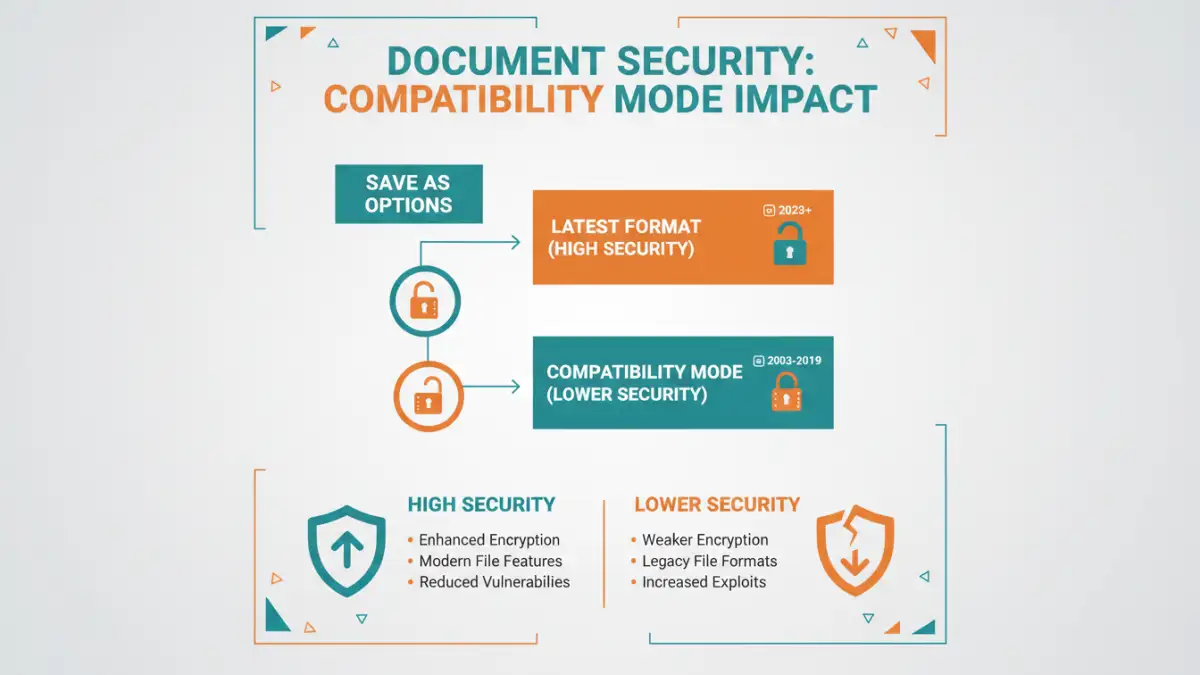
Compatibility mode in software, particularly in document editors like Microsoft Office, is designed to allow users to work with files created in older versions of the application. This feature ensures that documents saved in older formats (e.g., .doc instead of .docx) can still be opened and edited in newer versions, and vice versa. While primarily a usability feature, its implications for file security are significant.
The Security Nexus
When a document is opened or saved in a compatibility mode that favors older formats, it might bypass or disable certain advanced security features available in the latest software versions. These features could include enhanced encryption algorithms, digital signatures, or specific protection policies. Therefore, understanding the interplay between compatibility settings and your chosen document protection methods is crucial for maintaining robust security.
How Compatibility Mode Affects Security
The core issue with compatibility mode is that it often defaults to using older, potentially less secure, methods to ensure broad usability. For instance, older versions of Office used weaker encryption standards for password-protected files. When a newer version saves a document in an older format for compatibility, it might revert to these less secure encryption methods, making the document easier to crack if strong password protection is applied.
Conversely, some advanced security features might not be supported in older formats at all. If you attempt to apply a security policy that relies on newer framework elements while saving in a compatibility mode, the software might warn you that the feature will be lost or disabled. This highlights the direct impact of compatibility settings on the integrity of your document protection strategies.
Configuring Document Security Settings
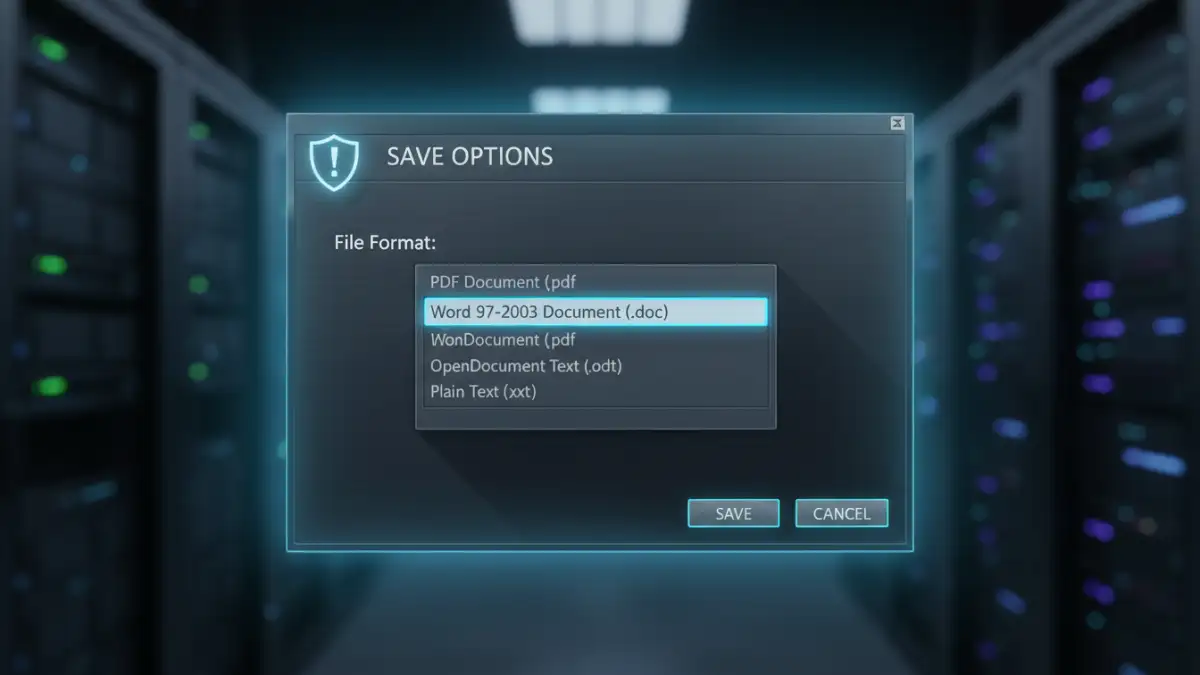
Adjusting compatibility settings to prioritize security over broad accessibility is a key step. Most modern office suites provide options to manage compatibility. For example, in Microsoft Word, when you go to 'Save As' and choose a file type like 'Word 97-2003 Document (.doc)', you'll often see a prompt or an 'Tools' option that allows you to choose security settings relevant to that older format.
Optimizing for Security
To enhance document security, it's generally advisable to save files in the latest native format (e.g., .docx, .xlsx, .pptx) whenever possible. These formats support the most advanced security features. If you must use older formats for compatibility reasons, be aware of the limitations. When applying passwords or other forms of document protection, opt for the strongest encryption available within that specific compatibility setting, if offered. Sometimes, this involves selecting specific encryption algorithms during the save process.
Best Practices for Protection
Beyond compatibility mode, several best practices ensure your documents are well-protected. Always use strong, unique passwords for any password-protected files, and consider using a password manager to keep track of them securely. Enable encryption features whenever available, selecting the highest level of encryption supported by your software and file format.
Regularly review your software's security options. Keep your operating system and applications updated to the latest versions, as these updates often include security patches and improved protection features. For highly sensitive data, explore advanced security measures like digital signatures or information rights management (IRM) if your software suite supports them.
Advanced Scenarios and Solutions
In scenarios where strict legacy file security is a requirement, but enhanced protection is also needed, you might face a dilemma. One approach is to maintain separate versions of documents: a universally compatible version with basic protection and a secure, latest-format version for internal use or trusted recipients. Another strategy involves using third-party encryption tools that operate independently of the application's built-in compatibility modes, offering more robust and consistent file security.
When dealing with collaborative environments, establish clear policies on file formats and security settings to ensure everyone on the team adheres to the same standards. Educating users about the risks associated with older formats and compatibility modes is paramount to preventing accidental security compromises.
Comparison Table
| Method | Description | Security Level | Compatibility Impact | Best Use Case |
|---|---|---|---|---|
| Save as Latest Format (.docx, .xlsx) | Utilizes the newest file format with full support for advanced security features. | High | Low (requires newer software) | Maximum security and feature set for internal use or trusted recipients. |
| Save in Compatibility Mode (.doc, .xls) | Saves files in older formats to ensure broad compatibility with older software versions. | Medium to Low (depends on encryption used) | High (ensures older software can open) | Sharing with users who have older software versions. |
| Third-Party Encryption Tools | External software or services that encrypt files independently of application format. | Very High | Generally High (creates an encrypted container/file) | Securing highly sensitive data regardless of application or format. |
| Using Password Protection with Older Formats | Applying passwords to .doc or .xls files. | Low to Medium (vulnerable to brute-force attacks depending on algorithm) | High (works with older formats) | Basic protection for less critical information when older formats are mandatory. |