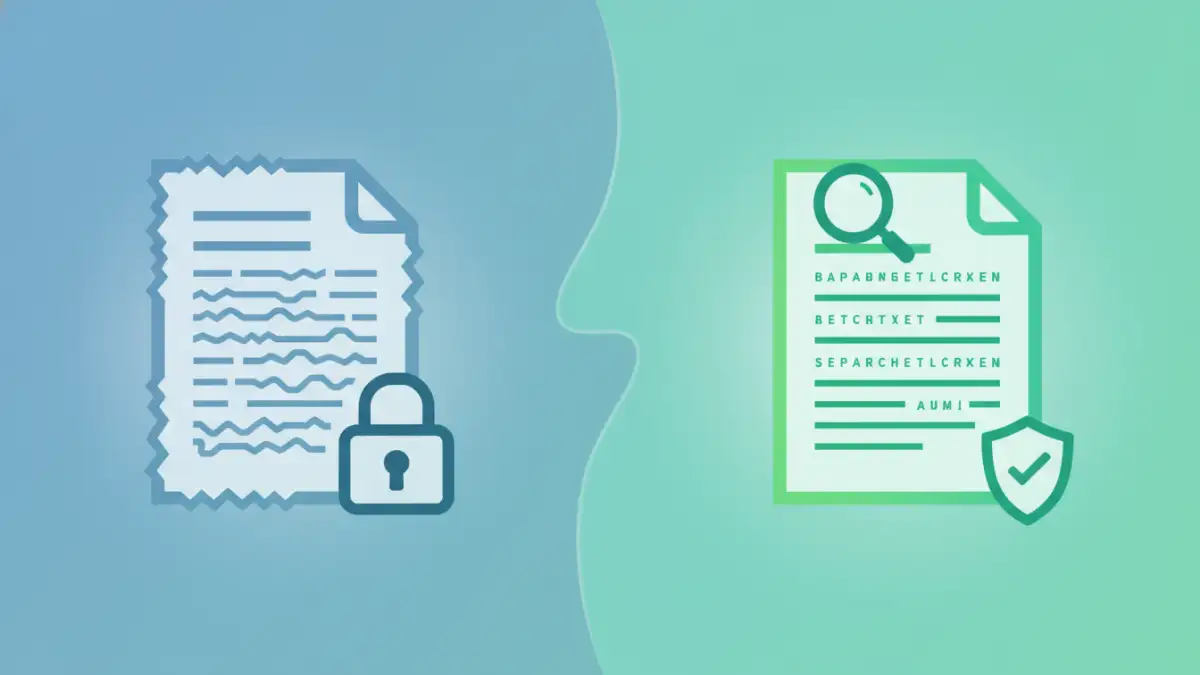
Working with scanned documents often presents a unique set of challenges. Unlike natively created digital files, scanned documents can sometimes be difficult to search, edit, or secure properly. This is especially true when dealing with sensitive information that needs protection. My experience has shown that a few key steps can drastically improve both the usability and the security of these files.
Ensuring your scanned documents are both easily accessible to authorized users and impenetrable to unauthorized ones is crucial in many professional and personal contexts. Whether it's for legal records, financial statements, or personal identification, the integrity and confidentiality of these files matter. We'll explore how to achieve this balance effectively.
Table of Contents
Understanding Scanned PDFs and Their Challenges
Scanned PDFs are essentially images of documents embedded within a PDF container. This image-based nature means that the text within them isn't directly selectable or searchable by default. This poses a significant hurdle for anyone needing to extract information or integrate the document into a digital workflow. My early projects often involved handling stacks of paper documents, and digitizing them was just the first step; making them truly usable was the real challenge.
The Image Problem
When a document is scanned, it's captured as a raster image. This is akin to taking a photograph of a page. Without further processing, a computer sees only pixels, not characters. This fundamental difference is why you can't simply copy and paste text from a basic scanned PDF, and why traditional search functions won't work.
Leveraging OCR for Searchable Scanned Files

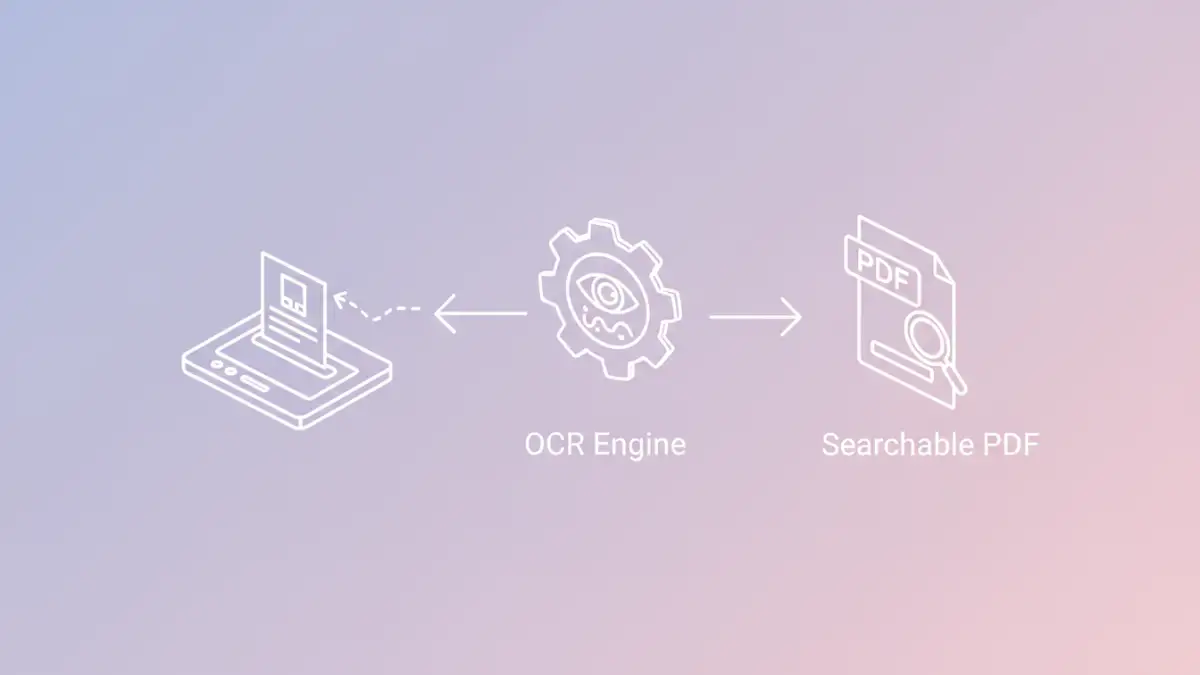
The solution to the image-based nature of scanned documents lies in Optical Character Recognition (OCR). OCR technology analyzes the image and identifies shapes that correspond to letters and numbers, converting them into actual text data. This process transforms a static image into a dynamic, searchable document.
Implementing OCR is a critical step to optimize scanned PDFs. I've used various OCR tools over the years, from built-in features in scanner software to dedicated desktop applications and online services. The quality of the OCR can vary, but generally, it makes a profound difference in how you can interact with your documents. It's the foundation for creating searchable scanned files.
How OCR Works
OCR software works by recognizing patterns. It compares the shapes it detects in the image against a database of known characters. Advanced algorithms can even account for different fonts, sizes, and handwriting styles, although the accuracy can be affected by the original scan quality. A good scan, with clear text and good contrast, yields much better OCR results.
Securing Your Scanned Documents
Once your documents are searchable, you'll want to ensure they are also secure, especially if they contain sensitive information. PDF security features include password protection, encryption, and permission settings. These layers of protection prevent unauthorized access and distribution.
For scanned documents that have undergone OCR, securing them is similar to securing any other digital document. You can apply passwords to restrict opening the file or set specific permissions, such as preventing printing or copying of text. This is where having a secure OCR document pays dividends, as you can apply these measures to the newly recognized text.
Applying Password Protection
Most PDF editing software allows you to add password protection. You can set a password for opening the document, which is essential for confidentiality. Alternatively, you can set a permissions password to control actions like printing, copying content, or editing. I always advise using strong, unique passwords and considering where and how these are stored.
Improving Readability and Accessibility
Beyond security, optimizing scanned PDFs also means making them easier to read and access. This involves ensuring the OCR process is accurate and that the layout is preserved. Sometimes, scanned documents have skewed angles, uneven lighting, or low resolution, all of which can hinder readability.
Tools can help correct these issues. Deskewing straightens crooked pages, while contrast and brightness adjustments can make text clearer. Some software can even remove background noise or 'clean up' the appearance of the page. Making these improvements ensures that users, including those with visual impairments using screen readers, can interact with the document more effectively.
Best Practices for Document Management
To consistently manage your scanned documents effectively, it's best to establish a workflow. This should include scanning at an appropriate resolution (typically 300 DPI for OCR), using reliable OCR software, and applying security measures consistently. Regular backups are also a critical part of document management, ensuring you don't lose important files.
Consider organizing your digital documents with clear naming conventions and folder structures. This makes finding specific files much easier, whether they are scanned or native documents. A well-organized system, combined with good security practices, ensures your important information remains accessible and protected.
Comparison Table: OCR and Security Methods
| Method/Feature | Description | Pros | Cons | Best For |
|---|---|---|---|---|
| Basic Scanning (Image PDF) | Captures document as an image. | Simple, fast initial capture. | Not searchable, not editable, low security. | Temporary archiving, non-sensitive images. |
| OCR Processing | Converts image text to selectable/searchable text. | Enables search, copy, edit; improves accessibility. | Accuracy depends on scan quality; can be slow. | Making scanned documents usable and searchable. |
| Password Protection (Open) | Requires a password to open the PDF. | Strong confidentiality for the entire document. | Password can be forgotten or shared. | Highly sensitive personal or business data. |
| Permission Settings | Restricts actions like printing or copying. | Controls how the document can be used after opening. | Can be bypassed with PDF editing tools. | Sharing documents while retaining some control. |
| Encryption (Advanced) | Uses cryptographic algorithms to protect data. | Robust security, often more resilient than basic passwords. | May require specific software to open; can be complex. | High-security requirements, legal compliance. |