Working with sensitive information means you've likely considered how to keep your files private. Whether it's personal financial records, confidential work reports, or proprietary business data, ensuring that only authorized individuals can access your documents is crucial. Over my years in software engineering, I've seen firsthand how easily data can be compromised if not properly secured. Implementing a password protection strategy is a fundamental step in safeguarding your digital assets.
This guide will walk you through the process, offering a clear checklist to help you effectively password protect documents. We'll cover various methods, from built-in features in common applications to more advanced techniques, ensuring you have the knowledge to choose the best approach for your needs.
Table of Contents
Understanding the Basics
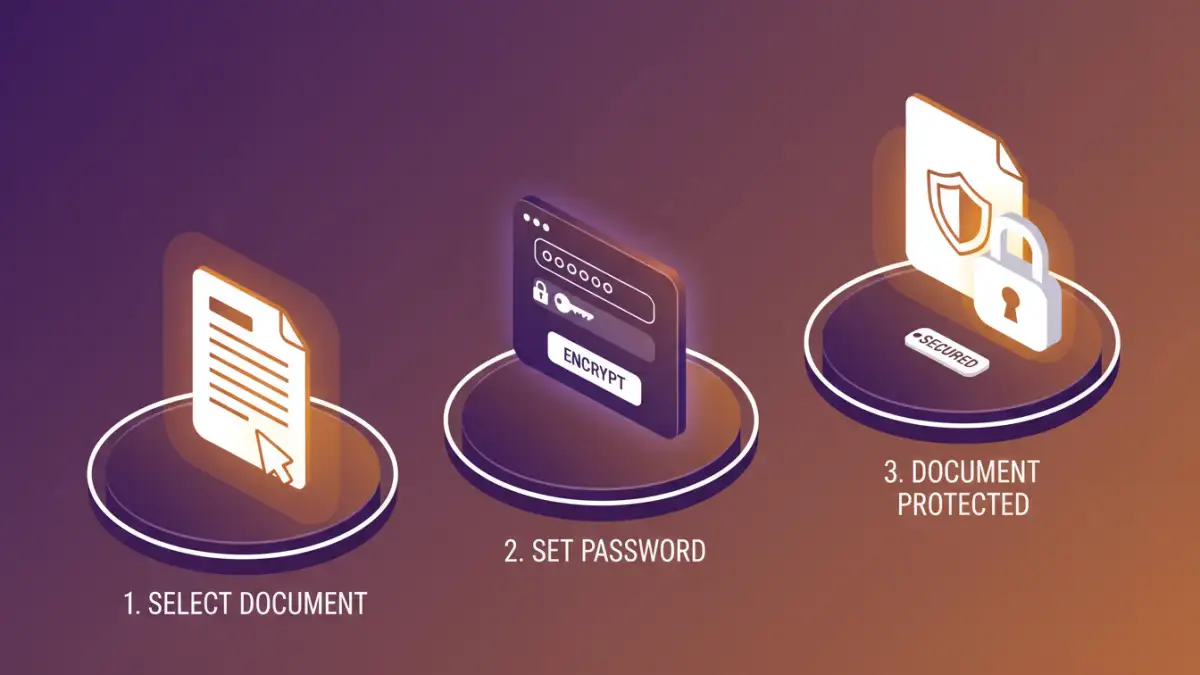
At its core, password protection for documents involves using an encryption algorithm to scramble the file's contents. When a password is set, it acts as the key to this scrambling process. Without the correct password, the file remains unreadable, effectively preventing unauthorized access. This is a vital layer of security for anyone handling sensitive data.
Why Secure Your Documents?
The reasons for securing your files are numerous. Data breaches are a constant threat, and a lost laptop or a compromised email account could expose your private information. Protecting your documents can prevent identity theft, financial fraud, and the disclosure of confidential business strategies. It's about maintaining control over who sees your information and when.
Common Methods to Add Password to File

Most common software applications and operating systems offer straightforward ways to add password protection to files. These methods are generally user-friendly and require no additional software installations.
Using Microsoft Office Suite
For Word, Excel, and PowerPoint documents, Microsoft Office provides a robust built-in feature. Navigate to 'File' > 'Info' > 'Protect Document' (or Workbook/Presentation). From there, you'll find an option to 'Encrypt with Password'. You'll be prompted to enter and confirm your password. Remember, if you forget this password, the document will be permanently inaccessible.
Protecting PDFs
Adobe Acrobat Reader (the free version) allows you to view password-protected PDFs, but you generally need Adobe Acrobat Pro or a similar PDF editor to add password protection. Open your PDF in Acrobat Pro, go to 'File' > 'Protect Using Password'. You can set different permission levels, such as restricting printing or editing, in addition to requiring a password for opening the document.
File Archiving Tools
Tools like 7-Zip or WinRAR allow you to compress multiple files into a single archive (like a .zip or .rar file) and password-protect the archive itself. This is an excellent way to password protect files that aren't in a standard document format or if you need to bundle several items together securely. When creating the archive, you'll be given an option to set a password.
Advanced Techniques for Secure Document Password
While built-in features are convenient, more advanced methods offer enhanced security or specific use cases.
Full Disk Encryption
Full disk encryption (FDE) tools like BitLocker (Windows) or FileVault (macOS) encrypt your entire hard drive. This means that all files on the drive, including your documents, are protected by a single password or recovery key. If your device is lost or stolen, the data remains inaccessible without the encryption key.
Third-Party Encryption Software
There are specialized software applications designed for robust file and folder encryption. These often provide stronger encryption algorithms, granular control over permissions, and features like secure deletion. Examples include VeraCrypt (free and open-source) or AxCrypt.
Best Practices for Password Protection
Simply adding a password isn't always enough. To truly password protect documents effectively, consider these best practices:
- Use Strong, Unique Passwords: Avoid common words, personal information, or simple patterns. Combine uppercase and lowercase letters, numbers, and symbols. A password manager can help create and store complex passwords.
- Don't Share Passwords Lightly: Treat your document passwords like any other sensitive credential. Only share them with individuals who absolutely need access.
- Back Up Your Data: Always maintain secure backups of your important documents. However, ensure these backups are also protected with appropriate security measures.
- Understand Encryption Levels: Different software uses different encryption standards (e.g., AES-128, AES-256). For highly sensitive data, opt for stronger encryption.
- Be Wary of Online Tools: While convenient, be cautious when uploading sensitive documents to online password protection services. Ensure the service is reputable and understand their privacy policy.
- Regularly Review Access: Periodically check who has access to your protected documents and revoke it if necessary.
Comparison Table: Document Protection Methods
| Method | Pros | Cons | Best For |
|---|---|---|---|
| Microsoft Office Encryption | Built-in, easy to use for Office files | Only for Office formats, requires remembering password | Word, Excel, PowerPoint documents |
| Adobe Acrobat Pro PDF Protection | Robust PDF security, permission controls | Requires paid software (Acrobat Pro) | PDF documents |
| File Archiving (ZIP/RAR) | Bundles multiple files, works on most OS | Archive password, not file-specific | Multiple files or non-document types |
| Full Disk Encryption (BitLocker/FileVault) | Protects all data on the drive | Requires OS support, one password for everything | Entire device security |
| Third-Party Encryption Software | High security, advanced features | Can have a learning curve, may cost money | Highly sensitive individual files or folders |