It's a moment of sheer panic: you've been working diligently on an important PDF document, perhaps a critical report, a contract, or a creative project, and suddenly, your software crashes. The computer freezes, an error message pops up, or the application just shuts down without warning. When you try to reopen the file, you're met with an unreadable document, a cryptic error message, or the file simply won't load. This is a frustratingly common scenario for many, leading to lost work and potential data loss.
When a PDF file becomes inaccessible due to a software crash, system error, or an abrupt shutdown, it can feel like a disaster. Fortunately, in many cases, the data isn't entirely lost. There are several techniques and tools that can help you salvage your work. This guide will walk you through understanding why this happens and, more importantly, how to recover your valuable PDF documents.
Table of Contents
Understanding the Causes of PDF Corruption
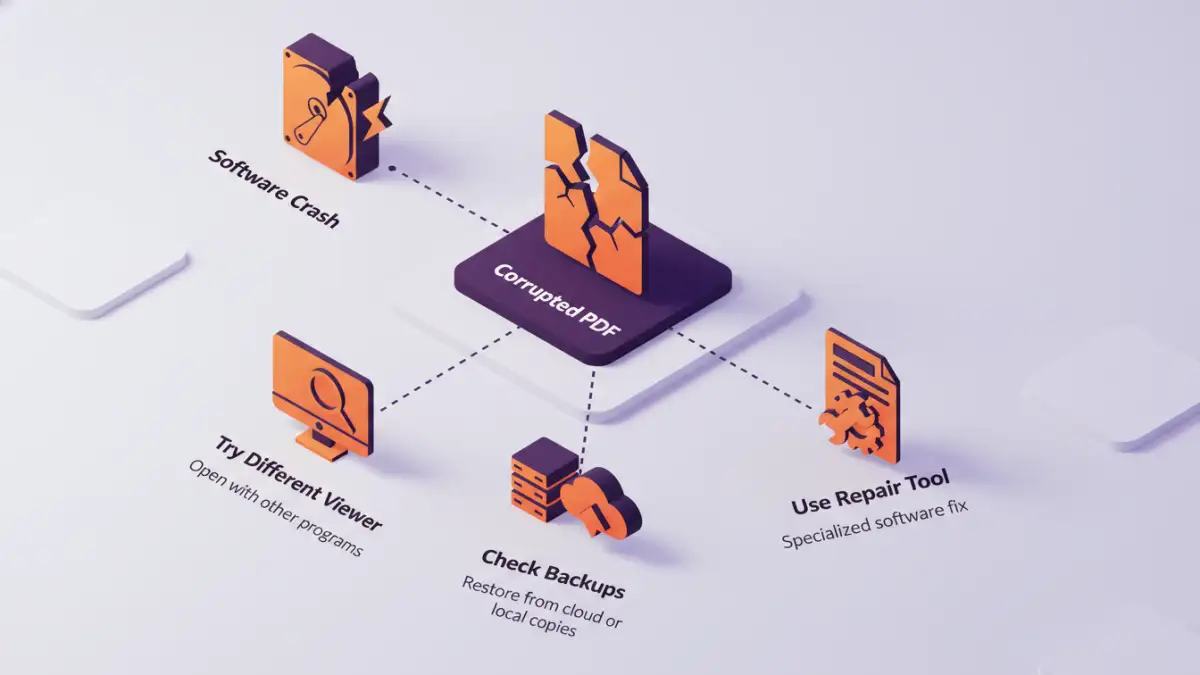
PDF corruption, leading to unreadable files after a software crash, can stem from various sources. The most common culprit is an abrupt interruption during the saving or editing process. If your computer loses power, the application freezes, or the operating system encounters a critical error while the PDF is being written to disk, the file's structure can become incomplete or malformed.
Other factors include issues with the PDF reader software itself. Sometimes, a bug within the reader can cause it to misinterpret or damage a file. Malware infections can also corrupt files, as can errors on the storage media (hard drive, USB drive) where the PDF is saved. Understanding these causes helps in anticipating potential problems and taking preventative measures.
Common Scenarios
I’ve seen this happen countless times. A colleague is finalizing a multi-page proposal, hits save, and then their Adobe Acrobat Reader decides to quit unexpectedly. Upon relaunching, the file shows up as 0 KB or displays an error like 'The file is damaged and could not be repaired.' Another scenario is when a PDF is downloaded incompletely from the internet, or an email attachment gets corrupted during transit. These situations all point to an issue where the file's integrity has been compromised.
Basic Recovery Methods

Before diving into complex solutions, several straightforward methods can often resolve issues with crashed PDFs. The first step is always to try reopening the file with a different PDF viewer. Sometimes, the issue isn't with the file itself but with how a particular reader interprets it. Trying Adobe Acrobat Reader, Foxit Reader, or even opening it in a web browser like Chrome or Firefox can yield surprising results.
Another simple approach involves checking for previous versions or backups. If you have File History enabled on Windows or Time Machine on macOS, you might be able to restore an earlier, uncorrupted version of the file. Also, if the PDF was recently saved, check your computer's temporary files or the application’s auto-save location. Sometimes, a partially saved version can be recovered from these hidden locations.
Using Previous Versions
For Windows users, right-clicking on the file (or the folder it was in) and selecting 'Restore previous versions' can bring back a prior state of the file. This feature relies on system restore points or File History being active. Similarly, macOS users can utilize Time Machine to go back to a point in time when the file was intact. These built-in utilities are often overlooked but can be incredibly effective for quick pdf corruption repair.
Advanced Recovery Techniques
When basic methods fail, more advanced techniques come into play. One of the most effective ways to tackle a corrupted PDF is by using specialized pdf corruption repair software. Numerous third-party tools are designed specifically to scan damaged PDF files, identify structural errors, and attempt to reconstruct them. These tools often employ sophisticated algorithms to piece together the fragmented data.
Another method involves using online PDF repair tools. Many websites offer free or paid services where you can upload your corrupted PDF, and their servers will attempt to repair it. While convenient, it's crucial to exercise caution with sensitive documents, as you are uploading your file to a third-party server. Always check the privacy policy of these services. For more technically inclined users, command-line tools or scripting might offer a way to manipulate and potentially fix certain types of file corruption, though this requires a deeper understanding of file structures.
Third-Party Software Options
Several reputable software applications can assist with pdf error recovery. Programs like Stellar Repair for PDF, Kernel for PDF Repair, or SysTools PDF Recovery are designed to handle various corruption scenarios. They typically offer a preview of the recoverable content before you commit to purchasing the full version, allowing you to assess their effectiveness. These desktop applications are generally more robust and secure than online alternatives for sensitive data.
Prevention and Best Practices
The best approach to dealing with corrupted PDFs is to prevent corruption in the first place. Regularly saving your work, especially during long editing sessions, is paramount. Using a reliable PDF editor with a robust auto-save feature can also mitigate risks. Ensure your software is up-to-date, as updates often include bug fixes that can prevent crashes.
Maintaining your computer's health is also crucial. Keep your operating system and antivirus software updated to protect against malware. Performing regular disk checks can help identify and fix potential issues with your storage media before they lead to file corruption. Finally, implementing a consistent backup strategy—whether through cloud services, external hard drives, or network-attached storage—ensures you always have a safe copy of your important files, making the task of pdf error recovery much simpler should the worst happen.
Comparison Table: PDF Recovery Methods
| Method | Pros | Cons | Best For |
|---|---|---|---|
| Reopen with Different Viewer | Free, quick, no extra software needed | Only works for minor display issues, not true corruption | Quick checks for simple readability problems |
| Restore Previous Versions (OS Feature) | Free, built into Windows/macOS | Requires feature to be enabled beforehand, may not have recent versions | Recovering accidentally deleted or slightly altered files |
| Online PDF Repair Tools | Convenient, accessible from anywhere, often free for basic use | Potential privacy/security risks, may have file size limits or subscription fees | Non-sensitive documents, quick fixes for minor corruption |
| Desktop PDF Repair Software | Powerful, advanced recovery capabilities, more secure than online tools | Often paid, requires installation, may have a learning curve | Severely corrupted PDFs, critical documents, business use |
| Regular Backups | Ensures data safety, provides clean copies | Requires setup and maintenance, takes up storage space | Preventing data loss and simplifying any recovery process |