Working with password-protected documents can be frustrating, especially when you encounter a document access error because the password has slipped your mind. As a software engineer, I've seen firsthand how crucial secure document management is, but also how easily a forgotten PDF password can halt productivity. Regaining access to these files doesn't always require advanced hacking skills; often, it's about knowing the right approach.
Table of Contents
Understanding PDF Password Protection
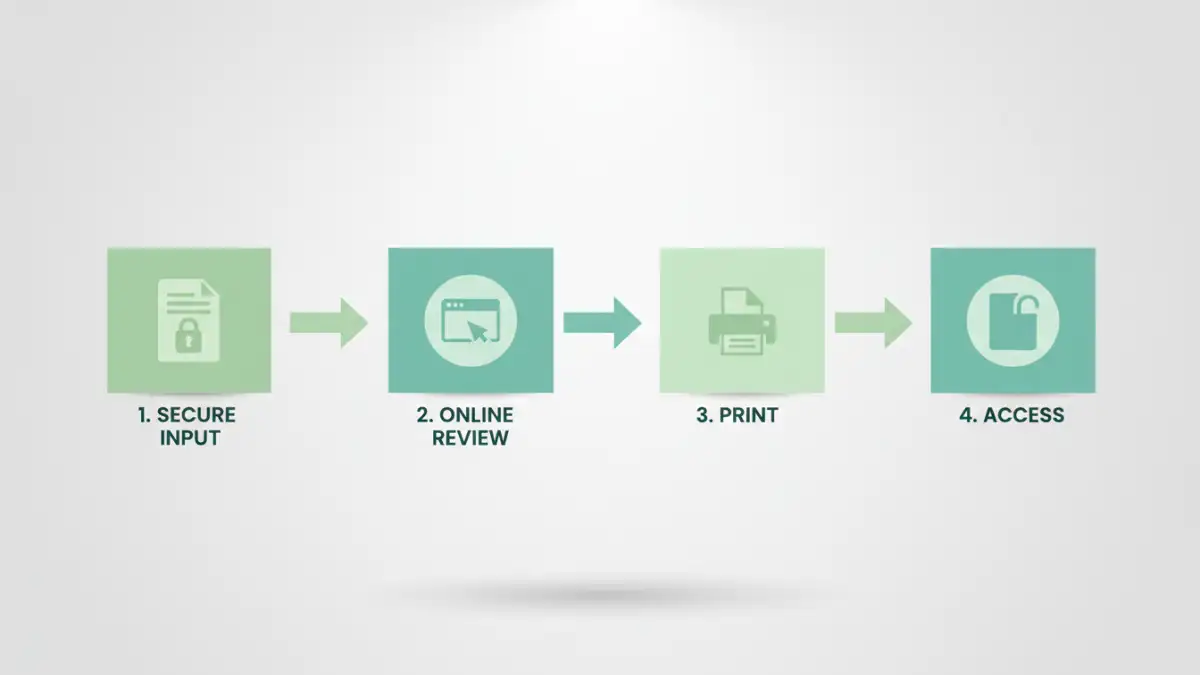
PDFs can have two main types of passwords: User (or Open) passwords and Owner (or Permissions) passwords. The User password prevents opening the document, while the Owner password restricts actions like printing, editing, or copying content. Understanding which type of protection you're up against helps determine the best pdf password reset strategy. Knowing this distinction is the first step toward regaining control over your documents.
Key Concepts: Types of PDF Passwords
An "open" password is the most common and directly prevents viewing the document. Without it, the file simply won't open. An "owner" password, on the other hand, allows viewing but restricts certain permissions like printing, editing, or copying text. Sometimes, you might only need to bypass the owner password to print or copy content, which is generally easier than cracking an open password.
Initial Steps When You've Forgotten PDF Passwords
Before resorting to complex tools or methods, always try the obvious. Check any password managers you use, look for physical or digital notes where you might have stored it, or try common passwords you frequently use. Often, the simplest solution is the one we overlook first. If it's a work document, reaching out to the sender or your IT department might be the quickest and most secure way to resolve a document access error.
The Browser Trick: A Simple Workaround
For PDFs protected by an owner password (allowing viewing but restricting editing/printing), a common browser trick can be surprisingly effective. Open the encrypted PDF in a web browser like Google Chrome, Microsoft Edge, or Mozilla Firefox. Use the browser's print function (typically Ctrl+P on Windows or Cmd+P on Mac) and select "Save as PDF" or "Microsoft Print to PDF" as the destination printer. This often saves an unprotected copy of the document, effectively helping you unlock encrypted PDF content without needing the owner password. I've personally used this method countless times for quick access to documents where only editing was restricted.
Leveraging Tools to Recover PDF Password
When the browser trick fails, especially for "open" passwords that prevent any access, specialized tools become necessary. These range from online services to dedicated desktop software, each with its own trade-offs regarding security, speed, and cost. Choosing the right one depends on the strength of the password, the sensitivity of the document, and your comfort level with different solutions.
Online Decryption Services
Websites like Smallpdf, iLovePDF, or PDF2Go offer services to recover PDF password protection, often for free. You upload your file, and if the password is weak or a common one, they might remove it relatively quickly. However, be extremely cautious with sensitive or confidential documents, as you are entrusting your file to a third-party server. Always weigh the convenience against the potential privacy and security risks before using such services.
Desktop Software Solutions
For more robust pdf password reset needs, especially when dealing with stronger encryption or highly sensitive data, desktop applications are often a more secure and powerful option. Tools like PassFab for PDF, Aiseesoft PDF Unlocker, or even certain forensic recovery tools can perform dictionary attacks or brute-force attempts. While effective, these can take significant time and computational power, depending on the password's complexity and your computer's resources. They offer greater control and keep your data local, reducing privacy concerns.
Best Practices for PDF Security
Preventing forgotten PDF passwords in the first place is always the best strategy for document access. Use strong, unique passwords for important documents, ideally generated and stored by a reputable password manager. Document your passwords securely, perhaps in an encrypted note or within a reliable password manager that syncs across your devices. Regularly review access permissions and consider alternative security measures like digital signatures for authenticity rather than solely relying on passwords for access. Employing a layered security approach minimizes the risk of a document access error.
Method Comparison: Pros and Cons of Different Approaches
| Method | Pros | Cons | Best For |
|---|---|---|---|
| Browser Trick | Free, No software needed, Fast | Limited to owner passwords, Not always effective | Quick fixes for permission restrictions |
| Online Decryption Tools | Easy to use, Fast processing for simple passwords | Privacy concerns, May not work for strong encryption | Non-sensitive files with weaker passwords |
| Desktop Software | Powerful, Handles all password types, Local processing | Can be paid, Requires installation, Time-consuming for complex passwords | Sensitive files, strong encryption, brute-force attempts |
| Password Managers | Secure storage, Auto-generation, Cross-platform sync | Requires setup, Subscription costs for advanced features | Long-term password management and prevention |