There's nothing quite as frustrating as needing to open an important PDF in your browser, only for the Safari PDF viewer to refuse to cooperate. I've been there myself, staring at a blank page or an error message when a critical document needed reviewing. It's a surprisingly common hiccup for many macOS users, and often, the fix is simpler than you might expect.
As someone who has spent over a decade dissecting software problems, I've found that these issues usually stem from a few core areas. Whether it's a conflict with browser data, an outdated system, or even a quirky website, pinpointing the cause is the first step to a smooth resolution. Let's walk through how to get your Safari PDF viewer back in working order.
Table of Contents
Understanding Why Safari PDF Viewer Fails
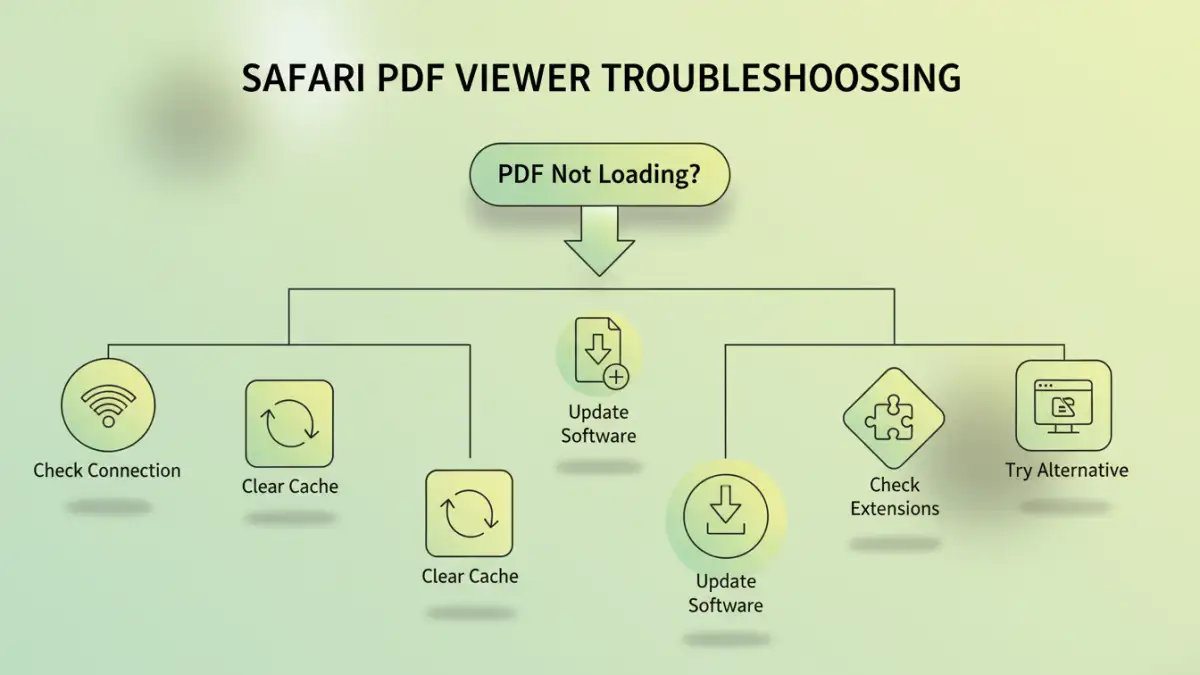
When a PDF fails to load in Safari, it can feel like a random event, but there's usually an underlying reason. From corrupt browser data to software conflicts, knowing the potential culprits helps narrow down the solution.
Identifying the root cause is crucial for efficient troubleshooting. Sometimes, the problem lies with the PDF itself, while other times, it's Safari or even your macOS system that needs attention.
Common Causes for PDF Problems
Several factors can prevent the Safari PDF viewer from displaying documents correctly. These often include outdated browser versions, corrupted cache files, conflicting browser extensions, or issues with the PDF file itself.
Less commonly, but still possible, are system-wide software conflicts or security settings that inadvertently block content. Understanding these common causes helps us systematically approach the troubleshooting process.
Initial Troubleshooting Steps for Safari PDF Issues
Before diving into more complex solutions, it's always best to start with the simplest fixes. Many Safari PDF viewer problems can be resolved quickly by addressing common browser-related issues.
These initial steps are often effective and require minimal effort, making them a great starting point for any user experiencing difficulties.
Check Your Internet Connection and PDF Source
A stable internet connection is fundamental for loading online PDFs. Ensure your Wi-Fi or wired connection is strong and not experiencing any interruptions. Try loading other websites to confirm connectivity.
Also, verify the source of the PDF. Is it from a reputable site? Sometimes, poorly formatted or corrupted PDFs can cause viewing issues regardless of your browser's health. Try opening the same PDF on a different device or browser if possible.
Clear Browser Cache and Website Data
Safari stores temporary files, known as cache, to speed up browsing. Over time, this cache can become corrupted and interfere with how content, including PDFs, is displayed. Clearing it often resolves these issues.
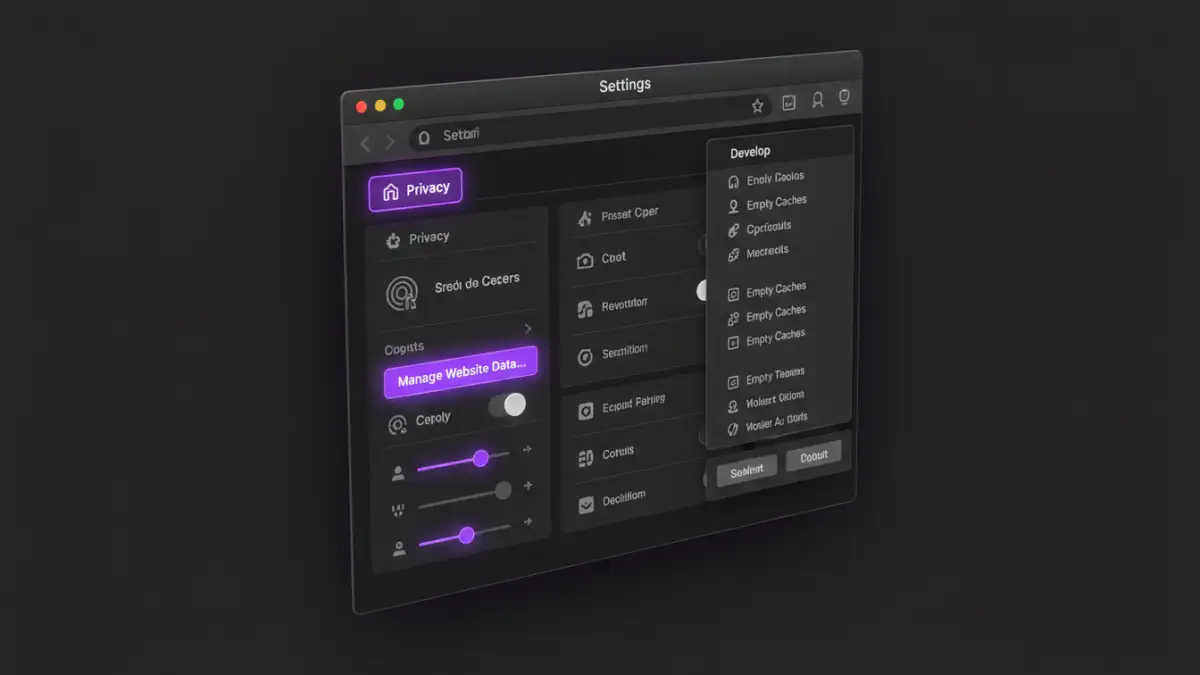
- Open Safari and go to
Safari > Settings(orPreferenceson older macOS versions). - Click on the
Privacytab. - Click
Manage Website Data.... - In the search bar, type the name of the website where you're trying to view the PDF, then click
Remove. To clear all data, clickRemove All. - Next, go to the
Advancedtab in Safari Settings. - Check the box at the bottom that says
Show features for web developers(orShow Develop menu in menu baron older macOS versions). - Now, in the Safari menu bar, click
Develop. - Select
Empty Caches.
After performing these steps, restart Safari and try loading the PDF again. This process often cleans up minor glitches that affect the Safari PDF viewer.
Advanced Solutions for Persistent Safari PDF Viewer Problems
If the basic troubleshooting steps didn't resolve your problem, it's time to explore more advanced solutions. These methods address deeper software-related issues that might be affecting your Safari PDF viewer.
These steps might involve system updates or checking for conflicts, which can be a bit more involved but are often highly effective.
Update macOS and Safari
Keeping your operating system and browser up to date is crucial for security and performance. Software updates often include bug fixes that can directly address issues with the Safari PDF viewer.
Go to System Settings > General > Software Update on macOS Ventura or later, or System Preferences > Software Update on older versions. Install any available updates for macOS, which will also update Safari.
Check for Conflicting Extensions
Browser extensions can significantly enhance Safari's functionality, but they can also cause conflicts. Some extensions might interfere with the Safari PDF viewer's ability to render documents.
To check for conflicts:
- Open Safari and go to
Safari > Settings(orPreferences). - Click on the
Extensionstab. - Try disabling all extensions, then restart Safari and attempt to open the PDF.
- If the PDF loads, re-enable extensions one by one, testing after each, to identify the culprit. Once found, you can decide to keep it disabled or look for an alternative.
Using an Alternative PDF Viewer or Browser
Sometimes, despite all troubleshooting, a particular PDF might still refuse to load in Safari, or you might prefer a different experience. macOS has a built-in Preview app that's excellent for PDFs.
You can download the PDF and open it directly in Preview. Alternatively, consider using a different browser like Chrome or Firefox, which have their own integrated PDF viewers, to see if the issue persists there. This can help determine if the problem is specific to Safari or more general.
Preventative Measures and Best Practices
Once you've resolved your Safari PDF viewer issues, adopting a few best practices can help prevent them from recurring. Proactive maintenance is always better than reactive troubleshooting.
These simple habits contribute to a smoother and more reliable browsing experience overall, ensuring your PDFs load consistently.
Keeping Your System Optimized
Regularly updating macOS and Safari is paramount. These updates not only bring new features but also crucial bug fixes and security patches that can improve PDF rendering and overall browser stability.
Additionally, avoid installing too many unnecessary browser extensions, as they can consume resources and potentially cause conflicts. Periodically review your installed extensions and remove any that you no longer use or trust.
Troubleshooting Methods for Safari PDF Viewer
| Method | Description | Pros | Cons | Best For |
|---|---|---|---|---|
| Check Connection & Source | Verify internet stability and PDF file integrity. | Quick, no software changes. | Doesn't fix browser-specific issues. | Initial diagnosis. |
| Clear Cache & Data | Removes corrupted temporary files. | Often resolves minor glitches. | May log you out of some sites. | Browser performance issues. |
| Update Software | Installs latest macOS and Safari versions. | Fixes known bugs, improves security. | Requires system restart, takes time. | Persistent, unexplained issues. |
| Disable Extensions | Identifies conflicting browser add-ons. | Pinpoints specific software conflicts. | May lose desired functionality. | Unexpected rendering problems. |
| Use Alternative Viewer | Opens PDF in Preview or another browser. | Reliable workaround, quick access. | Doesn't fix Safari's underlying problem. | Urgent viewing, Safari-specific issues. |