
Dealing with a large number of sensitive Excel spreadsheets can be a daunting task when it comes to security. Whether you're a small business owner, a finance professional, or managing personal records, ensuring your data remains confidential is paramount. Manually encrypting each file individually is not only time-consuming but also prone to errors, especially when you need to apply consistent security measures across many documents.
My experience has shown that efficient data protection often relies on smart, automated solutions. This is where the concept of bulk encryption becomes invaluable for safeguarding your digital assets. It streamlines the process, ensuring that all your critical Excel files are protected with robust encryption, minimizing risk and maximizing peace of mind.
Table of Contents
Understanding Excel File Encryption
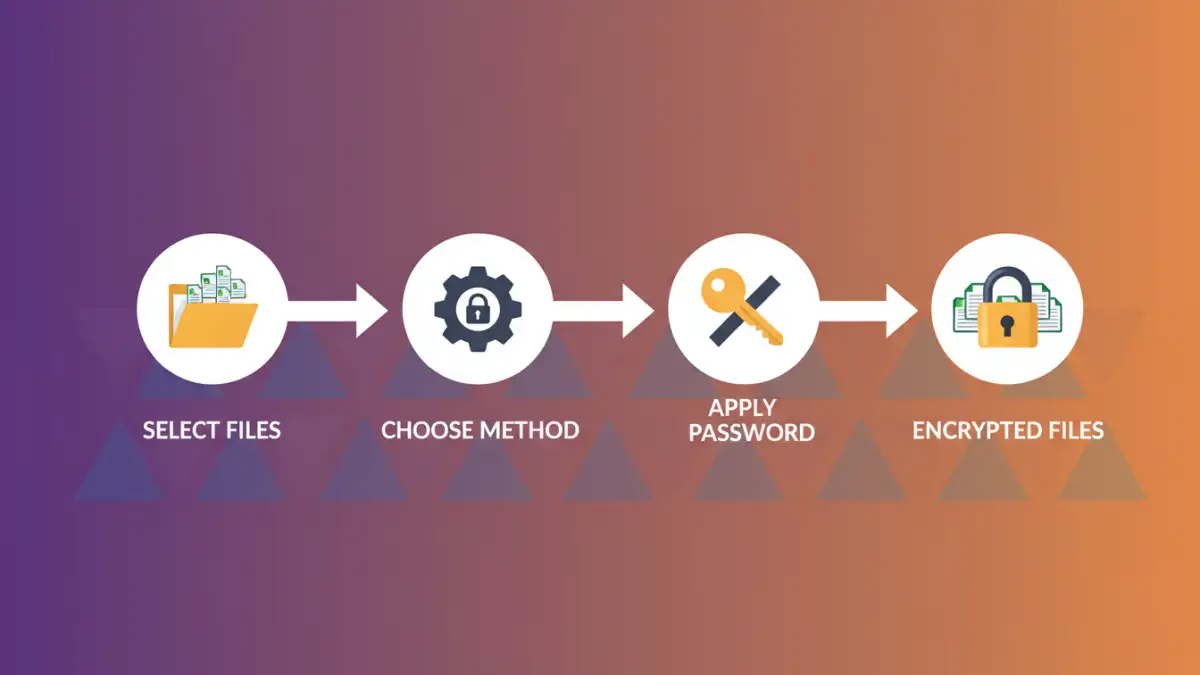
Excel offers built-in security features that allow you to password-protect individual workbooks. This is a fundamental step in securing your data, preventing unauthorized access to the content. However, this method is inherently manual, requiring you to open each file and apply a password.
When we talk about office file security, it's important to understand that Excel's encryption relies on a password. The strength of this protection directly correlates with the complexity of the password you choose. For sensitive data, using a strong, unique password is non-negotiable.
Key Encryption Concepts
The primary method within Excel involves setting a password to open the file. When a user attempts to open a password-protected workbook, Excel prompts them for the correct password. Without it, the file remains inaccessible. This is a basic but effective layer of security for single-user scenarios or when sharing files with trusted individuals.
For more advanced scenarios, particularly when dealing with multiple files, the limitations of manual encryption become apparent. This is where the need for efficient solutions arises, paving the way for batch document encryption strategies.
Methods for Bulk Encryption
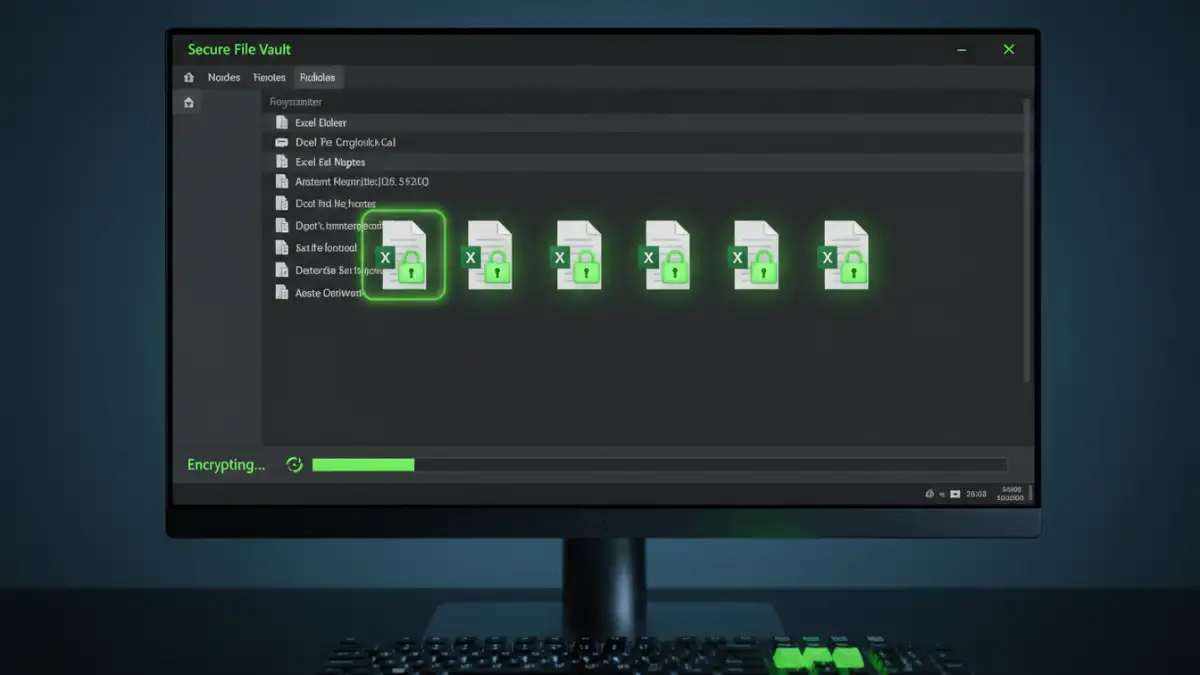
The challenge of securing numerous Excel files efficiently leads us to explore bulk encryption. This approach involves applying encryption to multiple files simultaneously, saving considerable time and effort. While Excel itself doesn't have a direct 'bulk encrypt' button, there are several ways to achieve this.
One common method involves using dedicated third-party software designed for batch document encryption. These tools are built to handle large volumes of files and often offer advanced features beyond simple password protection.
Using Third-Party Software
Numerous software applications are available that specialize in encrypting files in bulk. These programs typically allow you to select a folder or a list of files and apply a chosen encryption method or password to all of them in one go. This is often the most straightforward and user-friendly approach for many users.
When selecting such software, look for features like support for various file types (not just Excel), strong encryption algorithms (like AES-256), and ease of use. Many offer free trials, allowing you to test their capabilities before committing to a purchase.
Scripting for Automation
For users with a bit more technical inclination, scripting offers a powerful way to automate the process of encrypting Excel files. Languages like Python or even VBA (Visual Basic for Applications) within Excel can be used to write custom scripts that iterate through directories, apply passwords, and save the encrypted files.
For instance, a Python script could use libraries like `pandas` to open Excel files, and then use another library to encrypt them or, more commonly, use COM automation to interact with Excel and set the password protection. While this requires some programming knowledge, it offers unparalleled flexibility and control over the encryption process.
VBA Macro Example (Conceptual)
A VBA macro could be written to loop through all `.xlsx` files in a specified folder. For each file, it would open the workbook, set a password using the `Protect` method, save the file, and then close it. This approach leverages Excel's built-in capabilities but requires careful implementation to avoid data loss or unintended consequences.
Best Practices for Security
Regardless of the method you choose, certain best practices are crucial for effective office file security. Always use strong, complex passwords that are difficult to guess. A combination of uppercase and lowercase letters, numbers, and symbols is recommended.
Furthermore, it's wise to keep a secure record of your passwords, perhaps using a reputable password manager. Losing the password means losing access to your encrypted data permanently. Regularly review your security measures and update passwords as needed to maintain robust protection.
Comparison Table
| Method | Ease of Use | Flexibility | Cost | Encryption Strength |
|---|---|---|---|---|
| Manual Excel Protection | High | Low (per file) | Free | Standard (password dependent) |
| Third-Party Software | Medium to High | Medium to High | Free (trials) to Paid | High (AES-256 common) |
| Scripting (Python/VBA) | Low (requires coding) | Very High | Free (mostly) | High (depends on implementation) |