
It's a common frustration: you double-click a PDF file, expecting to see important information, but nothing happens, or an error message pops up. This can halt your workflow and cause significant inconvenience, especially if the document is time-sensitive. Fortunately, most of the reasons why a PDF file won't open are quite common and can be resolved with a few troubleshooting steps.
Over my years working with various document formats and software, I've encountered countless scenarios where PDFs refused to cooperate. From simple reader glitches to corrupted files, the solutions often lie in understanding the underlying causes. This guide will walk you through the most effective methods to get your PDF files opening correctly again.
Table of Contents
Understanding the Basics
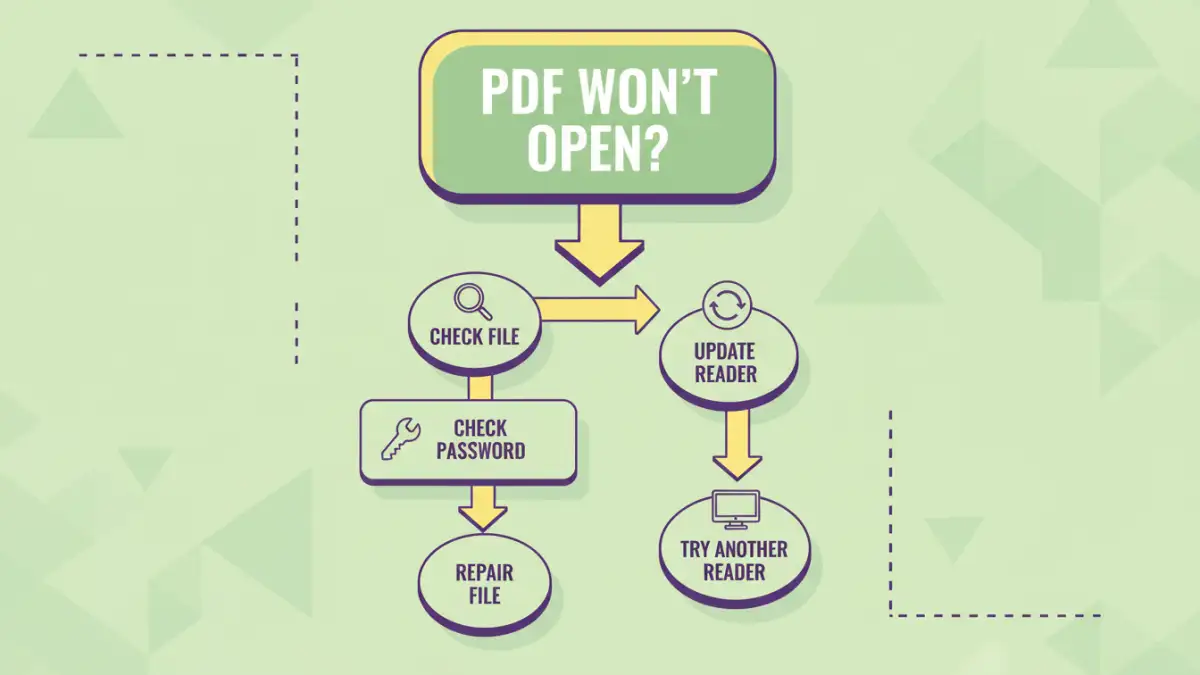
PDFs, or Portable Document Format files, are designed for universal compatibility across different operating systems and devices. Adobe created them to ensure documents look the same regardless of who opens them or what software they use. However, this universality doesn't make them immune to problems.
What is a PDF Reader?
To view a PDF, you need a PDF reader application. Adobe Acrobat Reader is the most common, but there are many others like Foxit Reader, SumatraPDF, or even web browsers like Chrome, Firefox, and Edge. Issues can arise from the reader software itself, the PDF file, or the system it's trying to open on.
Common Reasons a PDF Won't Open
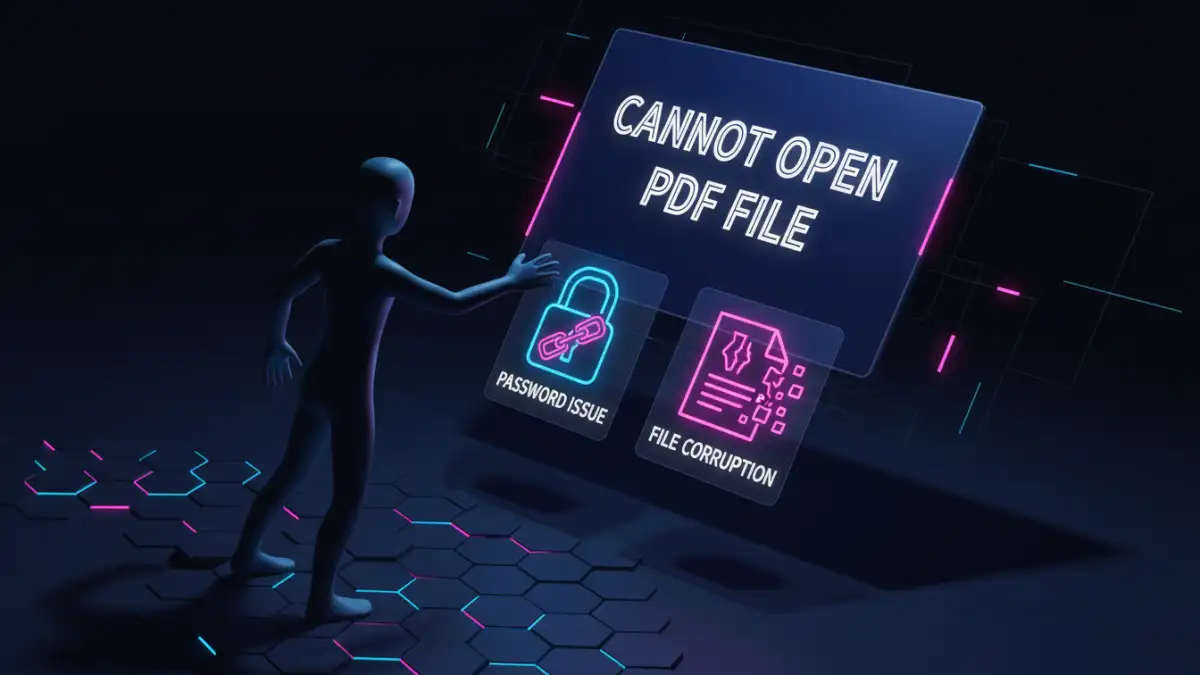
Before diving into solutions, it's helpful to understand why a PDF file might refuse to open. Identifying the likely cause can speed up the troubleshooting process significantly. Often, the problem isn't with the PDF itself but with the environment or the software trying to display it.
Corrupted or Incomplete Download
If you downloaded the PDF from the internet, the download might have been interrupted, resulting in a corrupted file. Similarly, if the file was sent via email and the attachment didn't fully transfer, it can lead to issues. Even if the file appears to have a size, it might be incomplete.
Outdated PDF Reader Software
PDF technology evolves, and older versions of PDF readers might struggle to open newer or more complex PDF files. Compatibility issues can arise if your reader software hasn't been updated to support the latest PDF standards or features.
File Encryption or Password Protection
Some PDFs are protected with passwords to prevent unauthorized access or modification. If you don't have the correct password, the PDF reader will prompt you for it. If you enter the wrong password or if the password protection is corrupted, the file won't open.
Issues with the PDF Reader Application
The PDF reader application itself might be experiencing glitches, have corrupted preferences, or be incompatible with your operating system. Sometimes, the reader might be running in the background or conflicting with other software.
File Association Problems
Your operating system might not correctly associate PDF files with your preferred PDF reader. When you double-click a PDF, the system might try to open it with an inappropriate program, or fail to open it altogether.
Step-by-Step Troubleshooting
When faced with a PDF that won't open, follow these steps systematically. Start with the simplest solutions and move towards more complex ones.
Check if the PDF File is Corrupted
Try opening other PDF files on your computer. If they open without issue, the problem is likely with the specific PDF file you're trying to access. If no PDFs open, the issue is probably with your PDF reader or system settings. If the file seems corrupted, try re-downloading it or requesting it again from the sender.
Update or Reinstall Your PDF Reader
Ensure you are using the latest version of your PDF reader. Go to the reader's website (e.g., Adobe Acrobat Reader) and download the newest version. If updating doesn't work, try uninstalling the current reader completely and then performing a fresh installation. This can resolve issues caused by corrupted program files.
Try a Different PDF Reader or Web Browser
Sometimes, a specific PDF reader might have a bug or incompatibility. Download and install an alternative PDF reader, such as Foxit Reader or SumatraPDF, and attempt to open the file. Alternatively, modern web browsers are quite capable of opening PDFs; try dragging the PDF file into a browser window.
Check File Permissions and Association
Ensure you have the necessary permissions to access the file, especially if it's on a shared network drive. On Windows, you can right-click the PDF, go to 'Properties', and check the 'Security' tab. You can also set the default application for PDF files by right-clicking the PDF, selecting 'Open with', and choosing 'Choose another app', then selecting your preferred reader and checking 'Always use this app to open .pdf files'.
Verify Password Protection
If the PDF is password-protected, ensure you are entering the correct password. Passwords are case-sensitive. If you've forgotten the password, you'll need to obtain it from the document's creator or owner. There are tools that claim to recover PDF passwords, but their effectiveness varies, and some may be unreliable or even malicious.
Advanced Solutions
If the basic troubleshooting steps haven't resolved the problem, consider these more advanced techniques.
Use Online PDF Repair Tools
There are several online tools designed to repair corrupted PDF files. Upload your problematic PDF to a reputable service, and it will attempt to fix it. Be cautious with sensitive documents, as you are uploading them to a third-party server. Always use well-known and trusted services.
Convert the PDF to Another Format
If you can't open the PDF directly, you might be able to convert it to a different format (like a Word document or an image) using an online converter or a dedicated software tool. Once converted, you can often view the content. This is a workaround, but it can be useful if data recovery is critical.
Check for System Updates
Ensure your operating system is up to date. Sometimes, system-level issues or missing components can affect how applications handle files. Installing pending Windows or macOS updates can resolve underlying problems.
Prevention Tips
To minimize future instances where a pdf file wont open, adopt these practices:
- Always download files completely.
- Keep your PDF reader software updated.
- Use reliable sources for downloading PDFs.
- When sending PDFs, ensure they are not corrupted before sending.
- If password-protecting, keep a secure record of the password.
Comparison Table: PDF Opening Solutions
| Method | Pros | Cons | Best For |
|---|---|---|---|
| Update PDF Reader | Free, resolves compatibility issues | May not work for severely corrupted files | Common reader bugs, outdated software |
| Try Different Reader/Browser | Free, quick to test | Requires installing new software | Reader-specific glitches, compatibility tests |
| Online Repair Tools | Accessible, no installation needed | Privacy concerns, requires internet | Minor file corruption, quick fixes |
| Re-download/Re-request | Free, ensures file integrity | Not always possible if source is unavailable | Incomplete downloads, corrupted transfers |
| Check Password | Free, verifies access rights | Requires correct password | Password-protected files |