
I recently helped a colleague who was struggling to secure a project's sensitive files. The issue wasn't a lack of effort, but rather a patchwork of different protection methods across various document types – some password-protected, others not, and many with easily guessable credentials. This kind of inconsistency is a common vulnerability, and it highlights a critical need for a more organized approach to digital asset security.
Ensuring that all your sensitive documents, spreadsheets, and presentations adhere to a consistent level of protection is paramount. Without it, even one overlooked file can become a significant security risk. This guide will walk you through establishing a robust and uniform file password protection strategy.
Table of Contents
The Challenge of Inconsistent File Security
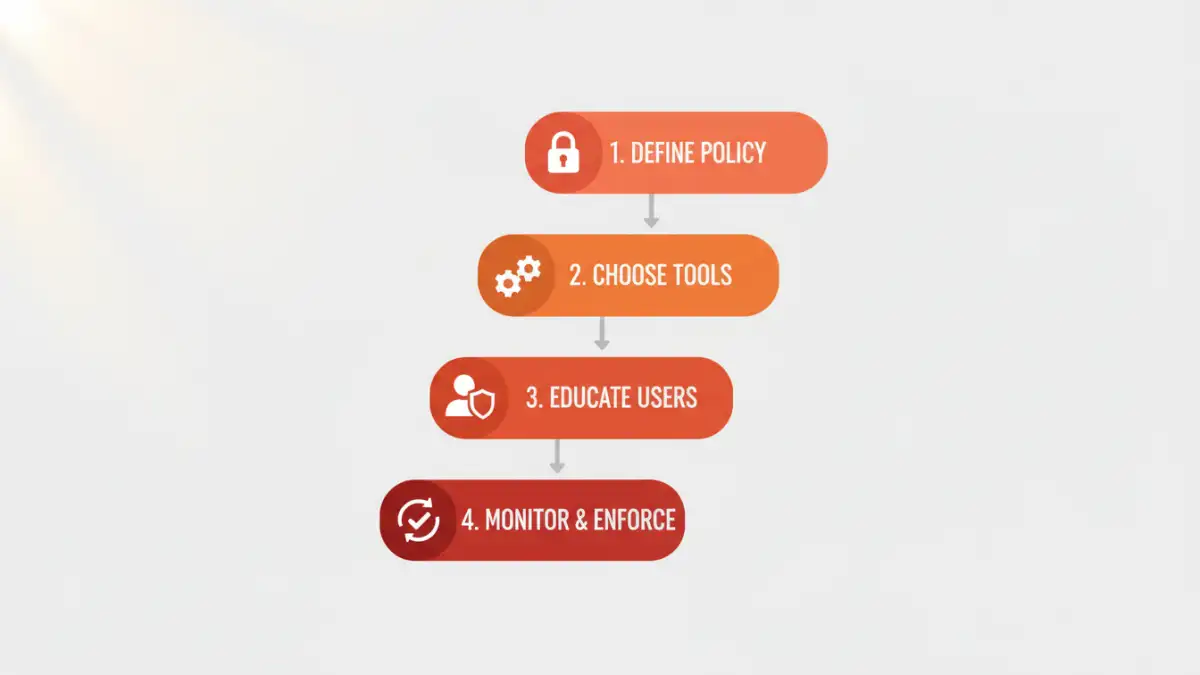
Many individuals and organizations inadvertently create security gaps by applying password protection haphazardly. One file might use a strong, unique password, while another, equally sensitive, remains completely unprotected or uses a weak, reused password. This fragmented approach is a ticking time bomb in an era of increasing cyber threats.
The problem often stems from a lack of a clear, overarching strategy. People protect files as needed, without considering the broader implications of an inconsistent security posture. This makes it difficult to manage, audit, and ultimately, trust the security of your digital assets.
Why Uniformity Matters
A uniform approach to file security isn't just about applying a password; it's about establishing a predictable and manageable security baseline. When every sensitive document adheres to the same standards, it significantly reduces the attack surface and simplifies compliance efforts.
From an operational standpoint, it means fewer surprises when trying to access or share protected information. From a security perspective, it ensures that your document security enforcement is comprehensive, leaving no easy entry points for unauthorized access. This consistent level of protection is what truly fortifies your digital perimeter.
Foundational Steps for Uniform Protection
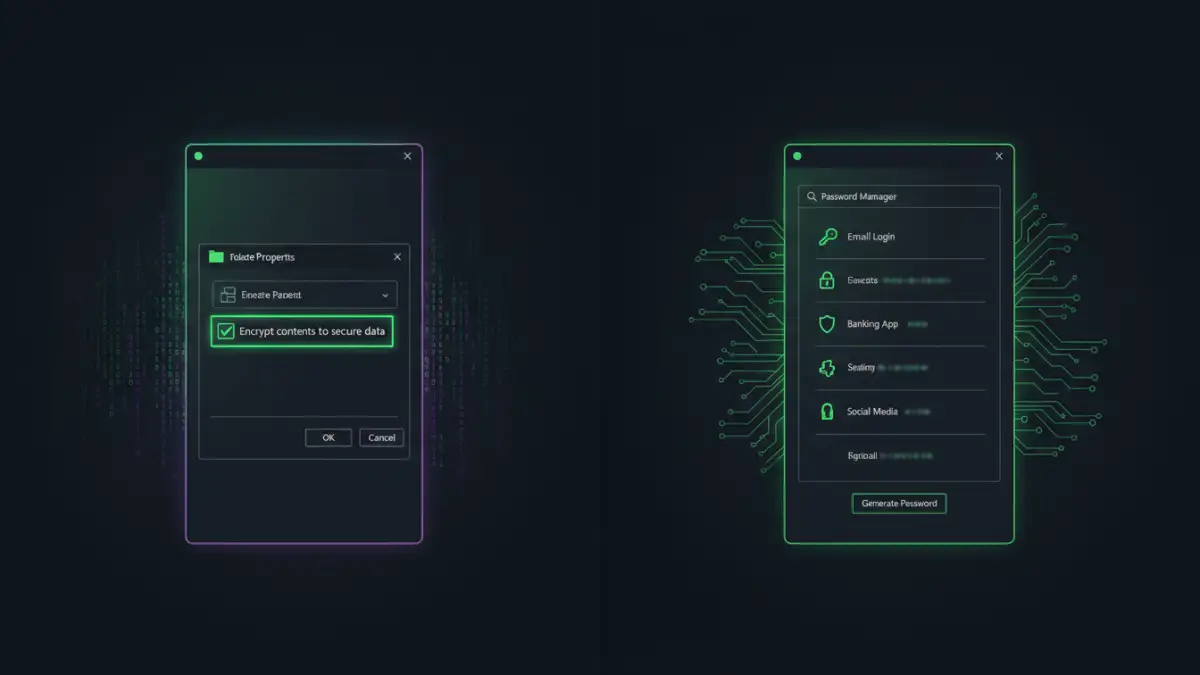
Achieving uniform file password protection begins with understanding the tools already at your disposal and integrating them into a coherent strategy. This involves both built-in operating system features and dedicated software solutions.
Start by identifying all sensitive files across your systems, regardless of their current protection status. This inventory is crucial for understanding the scope of your task and ensuring no file is overlooked during the implementation phase.
Leveraging Operating System Features
Modern operating systems like Windows and macOS offer built-in capabilities to encrypt files and folders. For instance, Windows' Encrypting File System (EFS) allows you to encrypt individual files and folders, linking them to your user account. macOS offers FileVault for disk encryption and the ability to password-protect individual PDFs through its Print dialog.
While these are good starting points for individual files, they often rely on manual application and can be challenging to manage uniformly across a large number of diverse files or multiple users. The key is to use them strategically, perhaps for specific, highly sensitive local files.
The Role of Password Managers
Password managers are indispensable tools for generating and storing strong, unique passwords. While primarily known for website logins, many also offer secure note-taking or file attachment features where you can store recovery keys or even small, encrypted files.
More importantly, they promote the habit of using complex, distinct passwords for every protected file. Integrating a password manager into your workflow ensures that when you apply password protection to a document, the password itself meets high security standards and is securely stored, which is a core tenet of effective document security enforcement.
Advanced Strategies for Centralized Enforcement
For organizations or users with a large volume of files and multiple stakeholders, manual application of password protection quickly becomes impractical. This is where advanced strategies come into play, allowing for centralized control and automation.
These methods aim to enforce password policy across entire file repositories, ensuring that new files are protected automatically and existing files can be brought into compliance efficiently. This level of control is essential for true file access control.
Group Policies and Enterprise Solutions
In corporate environments, Group Policy Objects (GPOs) in Windows Server can be used to dictate security settings, including those related to file encryption and access. While direct password protection of individual files via GPO is limited, you can enforce disk encryption (like BitLocker) or control access to encryption tools.
Enterprise Content Management (ECM) systems or Data Loss Prevention (DLP) solutions often provide more granular control. They can automatically encrypt files upon creation, restrict sharing based on content sensitivity, and even enforce password requirements before files can be exported or emailed, thereby enhancing document security enforcement.
Scripting for Automation
For those comfortable with scripting, languages like PowerShell (for Windows) or Python can automate the process of applying password protection to files. You can write scripts to scan directories for unprotected files, apply passwords (using secure methods for password storage), and even audit existing protections.
I've personally used PowerShell scripts to ensure that all generated reports from a specific application were automatically encrypted before being moved to a shared drive. This ensures that even if a manual step is missed, the system enforces the required protection, providing a robust uniform file password protection mechanism.
Best Practices for Sustained File Security
Implementing uniform protection is only half the battle; maintaining it requires ongoing vigilance and adherence to best practices. Security is not a one-time setup but a continuous process.
Regularly review your password policies and the strength of passwords used. As computing power increases, what was considered strong yesterday might be weak tomorrow. Stay informed about the latest security recommendations and update your practices accordingly.
- Educate Users: The strongest technical controls can be undermined by human error. Train users on the importance of password hygiene, how to identify sensitive files, and the correct procedures for applying and managing file protection.
- Regular Audits: Periodically audit your file systems to ensure that all sensitive files remain protected according to your established policies. Tools exist that can scan for unprotected sensitive data.
- Secure Password Storage: Never store passwords in plain text or easily accessible locations. Use reputable password managers or secure vaults for all file passwords.
- Backup Encrypted Data: Always back up your encrypted files, but ensure your backup strategy also accounts for the encryption keys or passwords. Losing a password can render your data permanently inaccessible.
- Multi-Factor Authentication (MFA): Where possible, implement MFA for accessing systems that store or manage your protected files. This adds an extra layer of security beyond just a password.
Method Comparison: Enforcing Uniform File Protection
| Method | Pros | Cons | Best For |
|---|---|---|---|
| Manual OS Features (e.g., EFS, PDF password) | Built-in, no extra software, free | Manual, inconsistent, limited scalability, user-dependent | Individuals, small number of highly sensitive local files |
| Password Managers (for password generation/storage) | Generates strong passwords, secure storage, cross-platform | Doesn't directly apply file protection, user adoption required | Individuals & teams needing strong, unique passwords for protected files |
| Enterprise DLP/ECM Solutions | Automated encryption, policy enforcement, auditing, centralized control | Complex setup, high cost, requires IT expertise | Large organizations with strict compliance needs |
| Scripting (e.g., PowerShell, Python) | Highly customizable, scalable automation, cost-effective for skilled users | Requires technical expertise, script maintenance, potential for errors | Tech-savvy individuals, small to medium businesses for specific automation tasks |