Managing sensitive information often requires robust security measures, and password-protected PDFs are a common solution. However, manually encrypting numerous documents can be a time-consuming and repetitive task. Fortunately, there are effective ways to automate this process, ensuring your documents are secure without adding significant overhead to your workflow. This approach is particularly valuable for businesses dealing with confidential client data, financial reports, or internal communications that need an extra layer of protection.
The need to automate password protected PDF generation arises in many scenarios, from regular report distribution to secure internal document management. By leveraging the right tools and techniques, you can streamline this critical security step, making document protection more efficient and less prone to human error. It’s about building a secure workflow that works for you.
Table of Contents
Understanding the Basics of PDF Security
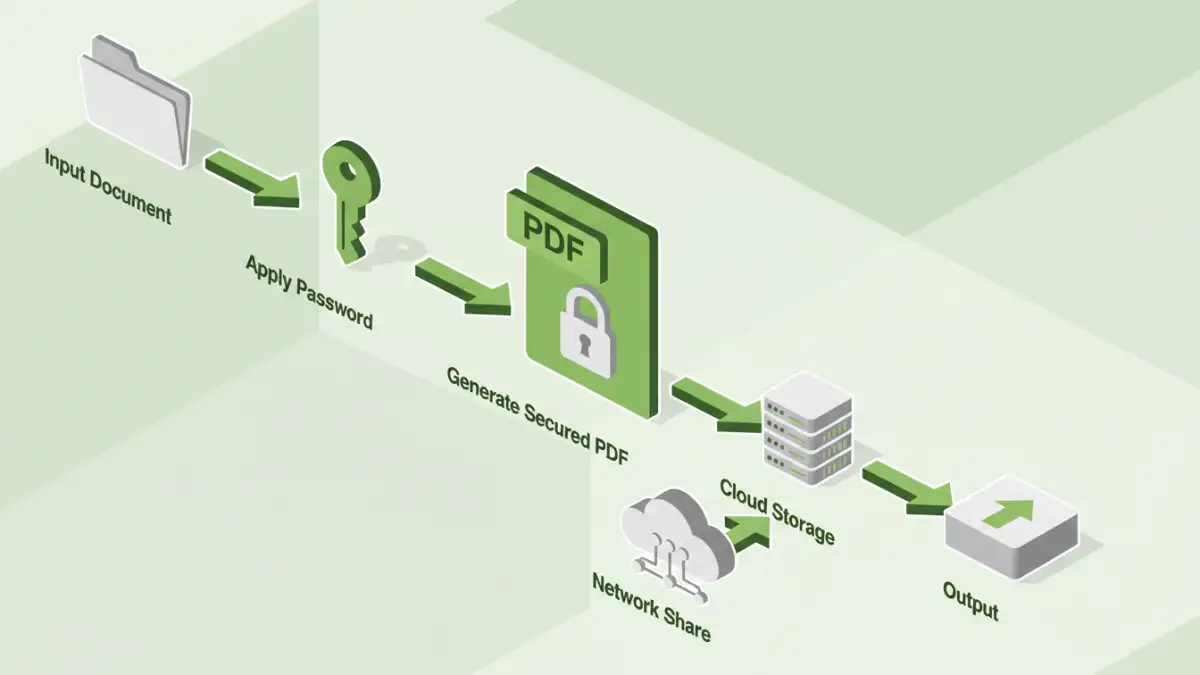
Securing a PDF with a password involves encrypting the document's content, making it inaccessible without the correct passphrase. This is typically achieved through industry-standard encryption algorithms like AES-128 or AES-256. When a user attempts to open the document, they are prompted to enter the password. Without it, the file remains unreadable, providing a crucial barrier against unauthorized access.
Key Concepts in PDF Encryption
The primary goal is to prevent unauthorized viewing, printing, or editing. Most PDF security features allow you to set permissions for these actions, in addition to requiring a password for opening. Understanding the difference between an owner password (for controlling permissions) and a user password (for opening the document) is key to implementing effective security. Automating this process means setting these parameters programmatically.
Step-by-Step Methods for Automation
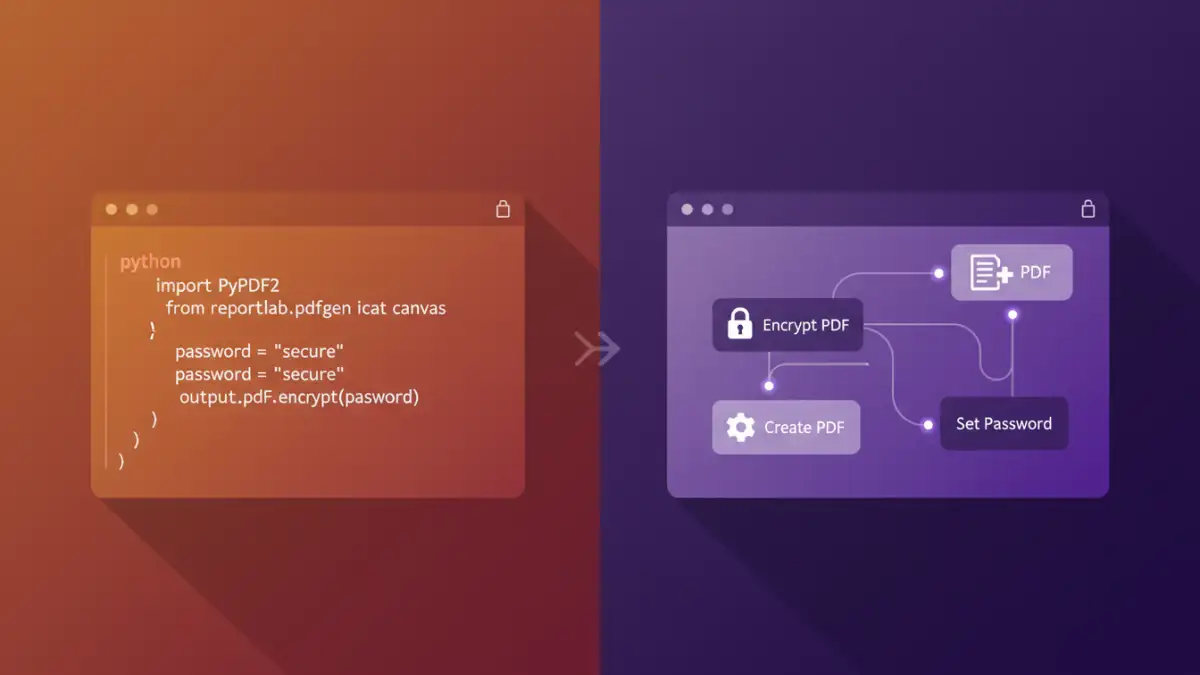
Automating the generation of password-protected PDFs can be approached in several ways, depending on your technical expertise and the volume of documents you need to process. These methods range from using built-in operating system features to employing specialized software and scripting. The core idea is to integrate the password protection step into an existing document creation or distribution process.
Method One: Using Scripting and Libraries
For developers, scripting languages like Python offer powerful libraries such as PyPDF2 or reportlab that can generate and encrypt PDFs. You can write a script that takes a document (or content to create a document), applies a specified password, and saves it as a protected PDF. This is highly customizable and ideal for batch processing large volumes of documents automatically. For instance, a script could monitor a folder for new documents, encrypt them with a predefined password, and then move them to a secure output directory.
Method Two: Leveraging Automation Tools
Several workflow automation tools and platforms allow you to build visual workflows that include PDF encryption steps. These tools often have connectors for various applications and can integrate with cloud storage services. You can design a process where, for example, a new file uploaded to a specific cloud folder automatically triggers a workflow that adds a password to the PDF and saves it to another location. This requires minimal coding and is suitable for less technical users.
Choosing the Right Tool
The best approach for document password automation depends on your specific needs. If you're a developer needing fine-grained control and batch processing, Python libraries are an excellent choice. For business users who need to integrate PDF security into broader workflows without extensive coding, dedicated automation platforms or specialized PDF software with automation features are more appropriate. Consider the volume, frequency, and complexity of your security requirements when making a decision.
Factors to Consider
When selecting a method or tool, evaluate ease of use, cost, security features (encryption strength, permission control), integration capabilities, and scalability. For a robust password protected PDF workflow, ensure the chosen solution supports strong encryption standards and can handle the volume of documents you anticipate. Some tools might also offer features like dynamic password generation based on user data, which can further enhance security.
Best Practices for Secure PDF Automation
Regardless of the method chosen, adhering to best practices is crucial for maintaining effective document security. This includes using strong, complex passwords and managing them securely, ideally through a password manager. Avoid using easily guessable passwords or the same password across multiple systems. Regularly review your automated processes to ensure they are functioning correctly and that security protocols remain up-to-date.
It's also important to consider who has access to the automation scripts or tools themselves. Secure these environments appropriately, as compromised automation could lead to widespread data breaches. Implementing a password protected PDF workflow is a significant step in data protection, but it must be part of a broader security strategy that includes access control and regular auditing.
Comparison Table: PDF Security Automation Methods
| Method | Primary Use Case | Ease of Use | Customization Level | Security Features | Cost |
|---|---|---|---|---|---|
| Scripting (e.g., Python libraries) | Batch processing, custom workflows, developer-centric | Moderate (requires coding knowledge) | High | Strong encryption, permission control | Free (libraries), server costs |
| Workflow Automation Tools | Integrating security into broader business processes | High (visual interface) | Moderate | Varies by platform, often supports strong encryption | Subscription-based, some free tiers |
| Dedicated PDF Software with Automation | Advanced PDF manipulation, scheduled tasks | Moderate (GUI with automation options) | Moderate to High | Comprehensive encryption and permission options | One-time purchase or subscription |
| Online PDF Tools with Batch Processing | Quick, occasional batch encryption of smaller files | Very High (web-based) | Low | Basic encryption, often limited features | Free tiers, paid plans for advanced features |