Creating secure documents from simple text is a crucial step in protecting sensitive information. Whether you're dealing with personal data, business contracts, or confidential reports, transforming plain text into a secure PDF format adds a vital layer of protection.
This process not only ensures that your documents are harder to tamper with but also allows you to control who can access them. It's a practical necessity in our increasingly digital world where data breaches are a constant concern.
Table of Contents
Understanding the Basics of Secure PDFs
When we talk about secure PDFs, we're generally referring to documents that have been protected using encryption or password protection. This prevents unauthorized users from opening, editing, or even printing the document without the correct credentials.
Key Security Concepts
The primary methods for securing a PDF involve password protection, which can restrict opening the document, and permission settings, which can limit actions like printing or copying text. Encryption scrambles the document's content, making it unreadable without the decryption key – the password.
Methods for Plain Text to Secure PDF Conversion
The journey from plain text to a secure PDF can be achieved through several avenues. Each method offers different levels of control, ease of use, and security features. Understanding these options helps you choose the best approach for your specific needs.
Using Browser Functionality
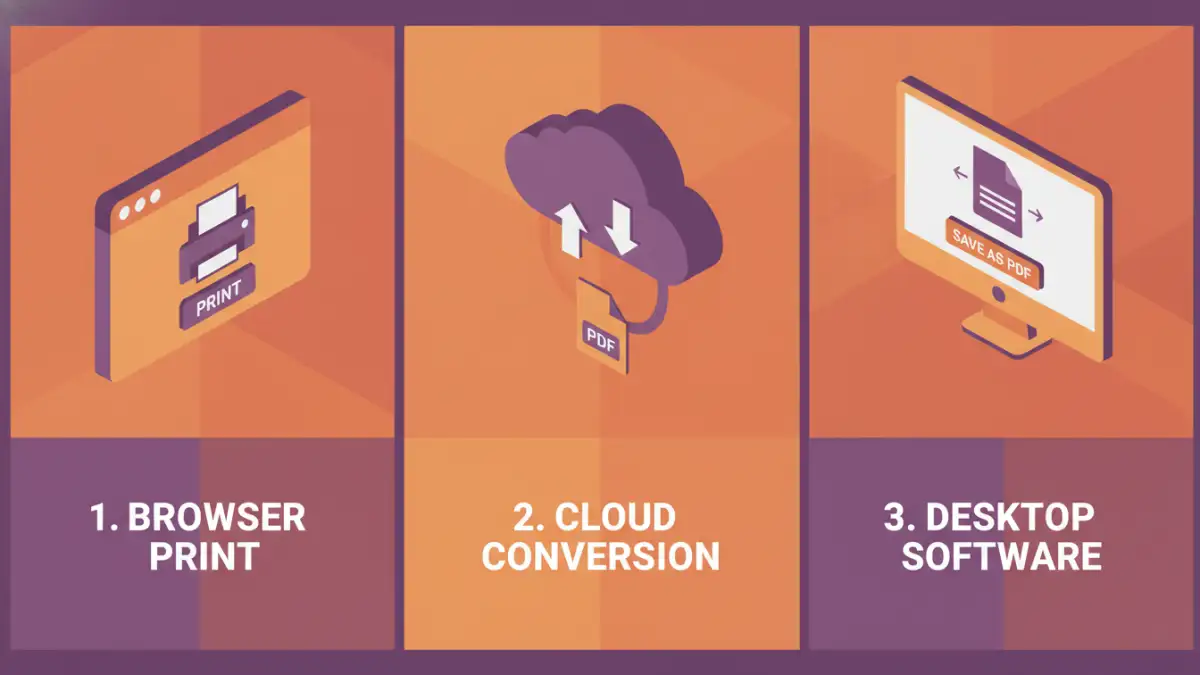
One of the simplest ways to convert plain text to a PDF, and then add a layer of security, involves using your web browser's built-in print-to-PDF feature combined with document editing software. You can paste your plain text into a document editor like Microsoft Word or Google Docs, format it as needed, and then use the 'Save as PDF' or 'Print to PDF' option. Many modern operating systems and browsers offer this functionality.
After creating the initial PDF, you can then use PDF reader software (like Adobe Acrobat Reader DC, which is free) to add password protection. When you go to save or print, look for security options. This approach is straightforward for basic needs and requires no extra software beyond what you likely already have.
Leveraging Online Conversion Tools
Numerous online platforms specialize in text to pdf conversion and also offer security features. Websites like Smallpdf, iLovePDF, or Adobe Acrobat online allow you to upload your text file (or paste text directly), convert it into a PDF, and then apply password protection. These tools are often user-friendly and accessible from any device with an internet connection.
However, it's essential to be mindful of privacy when using online tools. Always opt for reputable services that clearly state their data handling policies. For highly sensitive information, a desktop solution might be preferable due to potential data privacy concerns with uploading files to third-party servers.
Desktop Software Solutions
For more robust control and enhanced security, dedicated desktop software is often the best choice. Programs like Adobe Acrobat Pro DC provide comprehensive tools for creating, editing, and securing PDF documents. You can create a PDF from a text file, set strong passwords, and configure detailed permission settings.
Other professional PDF editors and even some advanced word processors offer similar capabilities. These applications generally offer higher levels of encryption and more granular control over document permissions, making them ideal for business-critical documents or when dealing with highly sensitive data that must remain strictly confidential.
Advanced Security Features
Beyond basic password protection, secure PDFs can incorporate more advanced security measures. These might include digital signatures, which verify the authenticity and integrity of the document, or encryption with varying key lengths (e.g., 128-bit or 256-bit AES encryption) for maximum protection. Some software allows for setting expiration dates for access or restricting copying and pasting of text.
When converting plain text, consider the ultimate purpose of the document. If it's for public sharing with minimal risk, basic PDF conversion might suffice. If it's for internal confidential use or sharing with select clients, employing stronger encryption and password complexity is highly recommended.
Best Practices for Document Security
Regardless of the method chosen, certain best practices ensure the highest level of security for your documents. Always use strong, unique passwords that combine upper and lower case letters, numbers, and symbols. Regularly update your security software and be cautious about sharing passwords.
When using online tools, ensure they are reputable and understand their privacy policies. For critical documents, consider creating a PDF locally and then using desktop software for encryption. Regularly reviewing your document security protocols can prevent potential breaches and safeguard your valuable information effectively.
Comparison Table: PDF Security Methods
| Method | Ease of Use | Security Level | Cost | Best For |
|---|---|---|---|---|
| Browser Print to PDF + Reader Security | High | Basic to Moderate | Free | Quick, simple password protection |
| Online Conversion Tools | Very High | Moderate | Free/Subscription | Convenience, basic security needs |
| Desktop PDF Software (e.g., Adobe Acrobat Pro) | Moderate to High | High to Very High | Paid (Subscription/One-time) | Comprehensive control, sensitive data |
| Word Processor Save as PDF + Reader Security | High | Basic to Moderate | Free (with software) | Existing document creation workflow |