
Running into storage limitations or struggling with slow transfer speeds for massive text datasets is a common challenge in my line of work. Whether it's gigabytes of log files, extensive codebases, or vast collections of research notes, these large files can quickly become unwieldy. The situation gets even more critical when these documents contain sensitive information that demands stringent security protocols.
My journey through a decade in software engineering has consistently highlighted the dual necessity of efficiency and security. We need to shrink these digital behemoths without compromising their integrity or exposing them to unauthorized access. This article will guide you through effective strategies to compress large text files and ensure they are securely stored.
Table of Contents
The Need for Compression and Security
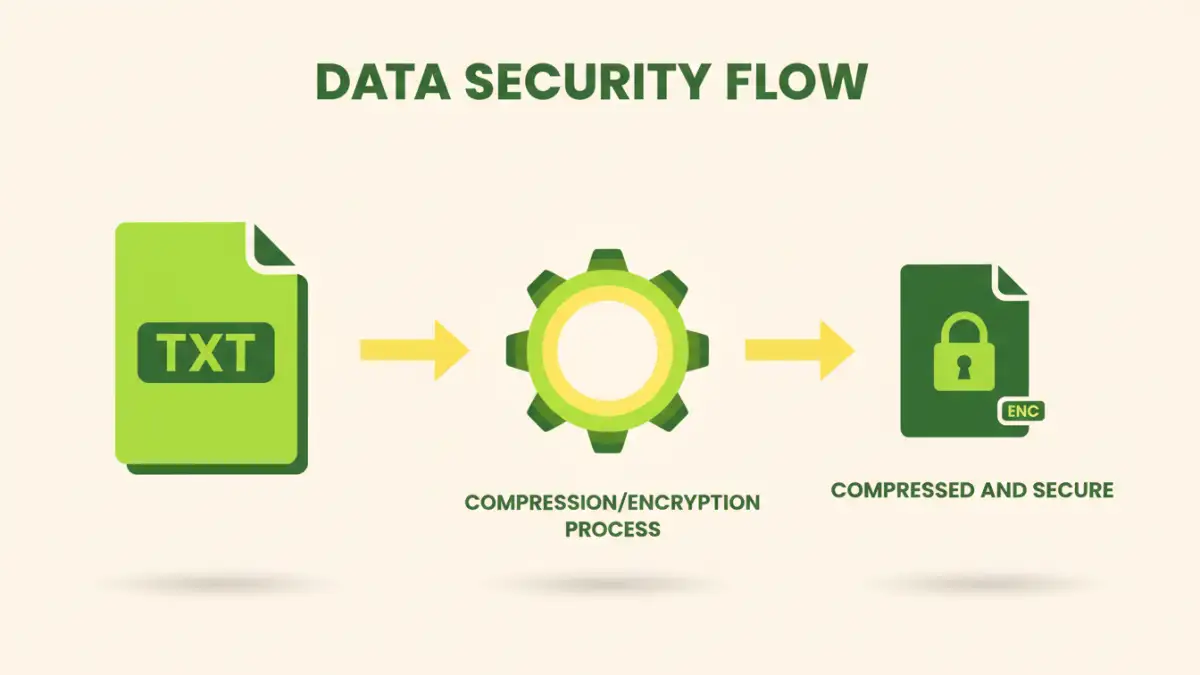
Dealing with large text files can strain system resources, from disk space to network bandwidth. Imagine transferring a 20GB log file over a corporate network; it's not just slow, it's a bottleneck. Efficient file compression directly addresses these practical challenges, making files easier to manage.
Why Compress Large Text Files?
The primary reason to compress large text files is to reduce their physical size. This not only saves valuable storage space on local drives, servers, or cloud platforms but also significantly speeds up file transfers, backups, and archival processes. Smaller files mean quicker operations and less resource consumption across the board.
Beyond mere size reduction, managing smaller files simplifies version control and data replication. When you need to keep multiple historical versions of a document, compression ensures that each iteration doesn't consume excessive resources. This becomes particularly relevant in development environments or data analysis pipelines where changes are frequent.
Common Compression Methods for Text Files
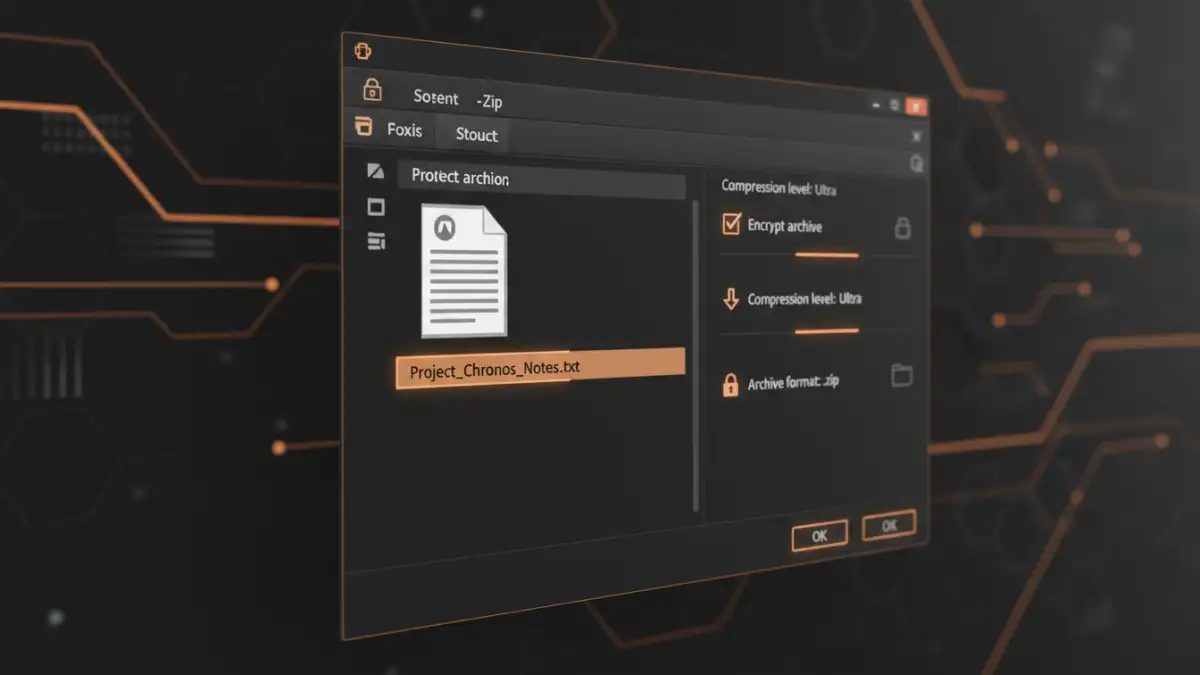
Several tools and techniques are available to effectively reduce the size of text files. The best method often depends on the operating system you're using, the level of compression required, and your comfort with command-line interfaces.
Using Archiver Tools (ZIP, GZ, BZ2)
For most users, standard archiver tools like ZIP, GZ (gzip), and BZ2 (bzip2) are the go-to solutions. ZIP is widely supported across all operating systems and provides a good balance of compression ratio and speed. Gzip is excellent for single files, often used in Linux environments, offering very fast compression and decompression.
Bzip2, while slower than gzip, generally achieves higher compression ratios, making it ideal for archival purposes where speed is less critical than maximum space saving. Most modern operating systems have built-in support or readily available third-party software (like 7-Zip or WinRAR) to handle these formats, making it straightforward to compress large text files.
Command-Line Tools for Automation
For developers and system administrators, command-line tools offer powerful options for automation and scripting. On Linux/Unix systems, gzip and bzip2 are native commands. For instance, gzip myfile.txt will compress myfile.txt into myfile.txt.gz.
For more advanced archiving, tar combined with compression tools is common: tar -czvf archive.tar.gz /path/to/my/large/text/directory. This command will create a gzipped tar archive of an entire directory. These methods are invaluable for automating routine backups or processing large batches of files.
Adding a Layer of Security: Encryption
Compressing files is one thing, but ensuring their confidentiality, especially when storing them in the cloud or on portable drives, is another. Encryption adds a critical layer of protection, scrambling your data so only authorized individuals with the correct key can access it.
Password-Protecting Archives
Many archiving tools, like 7-Zip or WinRAR, offer options to password-protect the compressed archive. When creating a ZIP or 7z file, you can specify a password, which encrypts the contents. This is a simple and effective way to secure individual files or collections of files before sharing or storing them.
It's crucial to use strong, unique passwords for these archives. A weak password negates the encryption's effectiveness. I've often seen colleagues use simple dates or common words, making their 'secure' archives vulnerable. Always opt for a complex passphrase generated by a reliable password manager.
Full Disk Encryption vs. File Encryption
While password-protecting archives is good for individual files, consider full disk encryption (FDE) for entire drives. Technologies like BitLocker (Windows), FileVault (macOS), or LUKS (Linux) encrypt everything on a drive. If your device is lost or stolen, the data remains unreadable without the encryption key.
For cloud storage, client-side encryption is paramount. Services like Boxcryptor or Cryptomator allow you to encrypt files on your local machine *before* uploading them to cloud providers like Dropbox or Google Drive. This ensures that even if the cloud provider's security is breached, your data remains secure, as they only receive the encrypted version. This is a practice I strongly advocate for any sensitive data stored off-premises.
Best Practices for Managing Compressed and Secure Data
Beyond the technical steps, adopting good habits for data management is key to maintaining both efficiency and security. A proactive approach minimizes risks and streamlines workflows.
Regular Backups and Version Control
Even with optimal compression and encryption, data loss can occur due to hardware failure, accidental deletion, or ransomware attacks. Implement a robust backup strategy, preferably following the 3-2-1 rule: three copies of your data, on two different media, with one copy off-site. Compressed and encrypted archives are ideal candidates for these backup processes.
For critical text files, especially code or documents undergoing frequent revisions, version control systems like Git are invaluable. They track every change, allowing you to revert to previous states and manage collaborative efforts efficiently. While Git handles its own compression, ensuring the initial files are optimized before committing can still yield benefits.
Choosing the Right Tools and Algorithms
The choice of compression algorithm (e.g., Deflate for ZIP, LZMA for 7z) and encryption standard (e.g., AES-256) matters. For sensitive data, always opt for industry-standard, strong encryption algorithms. Avoid deprecated or weaker encryption methods. For compression, experiment with different tools to find the balance between compression ratio and speed that best suits your specific needs.
When selecting tools, consider their reputation, open-source nature (for transparency), and active development. Relying on well-maintained software reduces the risk of vulnerabilities. My experience has shown that investing a little time upfront in tool selection saves significant headaches down the line.
Compression and Encryption Method Comparison
| Method | Pros | Cons | Best For |
|---|---|---|---|
| ZIP (with password) | Widely compatible, good balance of speed/ratio, built-in encryption | Encryption can be weaker than dedicated tools, moderate compression | General file sharing, quick secure archiving |
| 7-Zip (7z format) | Excellent compression ratios, strong AES-256 encryption, open-source | Less universally supported than ZIP, slower compression/decompression | Maximum space saving, highly secure archives |
| Gzip/Bzip2 | High compression (Bzip2), very fast (Gzip), native on Unix-like systems | No built-in encryption, primarily for single files (Gzip) or tarballs | Log file archiving, automated system backups (combined with tar) |
| Full Disk Encryption (FDE) | Encrypts entire drive, transparent to user once unlocked | Requires OS-level setup, device-specific, all data on drive encrypted | Laptop/desktop security, preventing data theft from lost devices |
| Client-Side Cloud Encryption | Encrypts data before it leaves your device, strong privacy | Adds an extra step to cloud workflow, potential for key loss | Sensitive data in public cloud storage |