Working with sensitive documents requires robust protection. Whether you're handling personal financial records, confidential business proposals, or private correspondence, ensuring that your files are inaccessible to unauthorized eyes is paramount. This is where document encryption software comes into play, transforming readable data into an unreadable format that can only be deciphered with a specific key or password.
The good news is that you don't always need to invest in expensive commercial solutions to achieve strong security. Many free tools and built-in operating system features offer effective ways to encrypt your files. In this review, I'll share my insights on how to choose and use the best free document encryption software available, focusing on practicality, ease of use, and security.
Table of Contents
Understanding Document Encryption
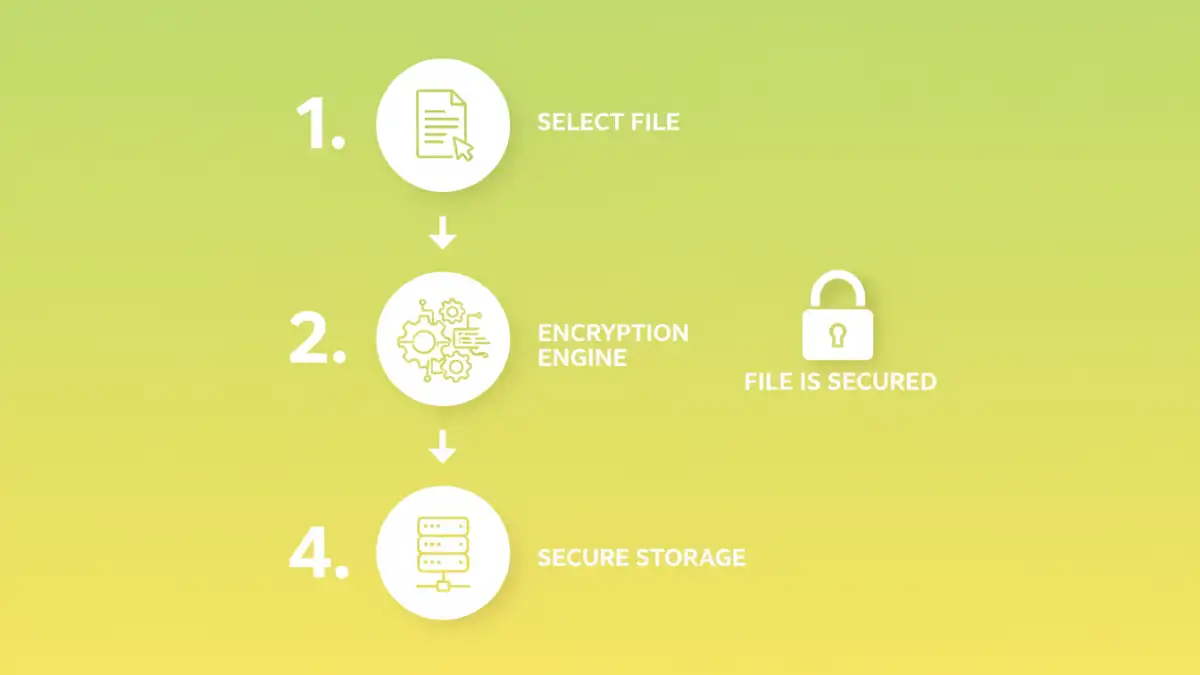
At its core, encryption is the process of encoding information so that only authorized parties can understand it. For documents, this typically involves using an algorithm and a secret key or password to scramble the data. When someone tries to open the encrypted file without the correct key, they see gibberish instead of the original content. This is crucial for protecting data both at rest (when stored on a device) and in transit (when being shared).
Types of Encryption
There are two main types of encryption: symmetric and asymmetric. Symmetric encryption uses the same key for both encryption and decryption, making it faster and simpler for encrypting large files. Asymmetric encryption uses a pair of keys—a public key for encryption and a private key for decryption—which is more complex but essential for secure key exchange and digital signatures. Most free document encryption tools rely on symmetric encryption for straightforward file protection.
Overview of Free Encryption Tools
The landscape of free software can be a bit daunting, but several reliable options stand out for their ability to encrypt files. These tools range from simple password protection for individual files to creating encrypted archives or even full-disk encryption. My experience has shown that for most users needing to protect specific documents, dedicated file encryption utilities or archive tools are the most accessible.
VeraCrypt
VeraCrypt is a powerful, open-source disk encryption software that can also be used to create encrypted containers (virtual encrypted disks) within a file. It's a fork of the now discontinued TrueCrypt and is highly regarded for its security and flexibility. You can create an encrypted file container, mount it as a virtual drive, and then store your sensitive documents inside. It supports AES, Serpent, and Twofish encryption algorithms.
7-Zip
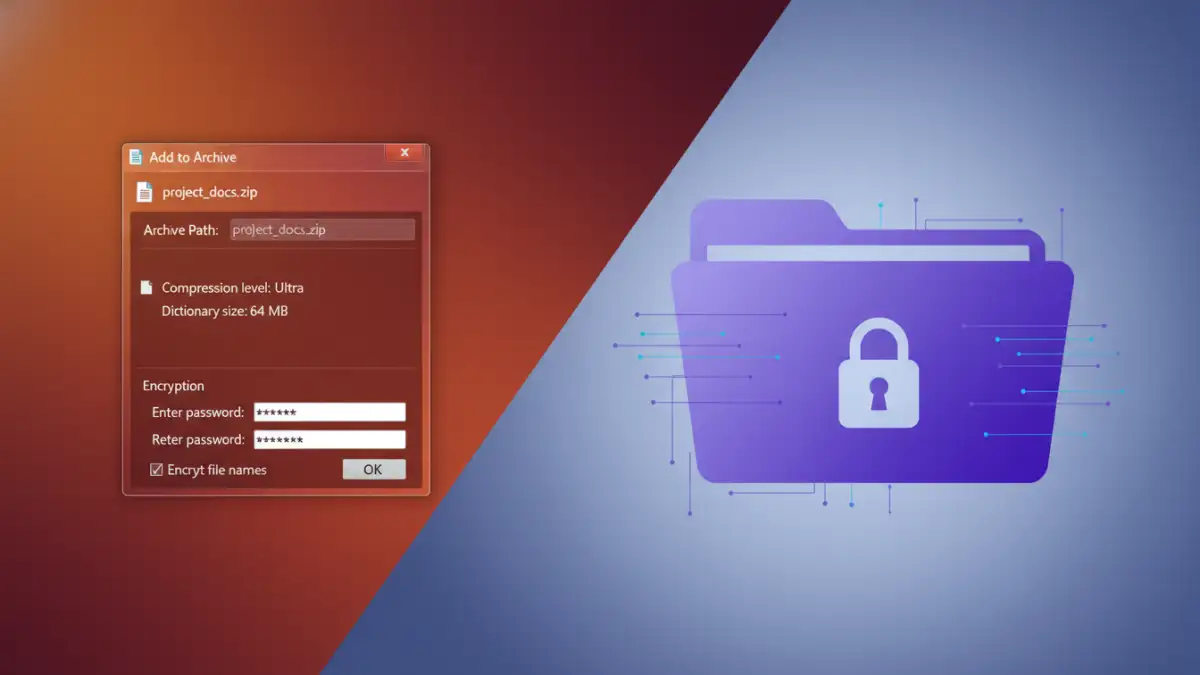
While primarily known as a file archiver, 7-Zip offers robust AES-256 encryption for creating password-protected ZIP and 7z archives. This is an excellent option if you need to encrypt multiple files at once or compress them for storage or sharing. It's user-friendly and widely available for Windows. I've used 7-Zip extensively for bundling and securing project files before sending them out.
AxCrypt
AxCrypt is another popular free tool, offering one-click encryption and decryption of individual files. It integrates seamlessly with Windows Explorer, allowing you to right-click a file and encrypt it with a password. It also offers features like secure password management and integration with cloud storage services. For quick, individual file protection, it's very convenient.
Using Built-in Operating System Features
You don't always need to download third-party software. Both Windows and macOS offer built-in methods to encrypt your files, which can be sufficient for many users.
BitLocker (Windows)
For Windows Pro and Enterprise editions, BitLocker offers full-disk encryption, which secures your entire drive. It can also be used to encrypt specific folders or create encrypted .VHDX files that act as secure containers. While not strictly a free download, it's included with certain Windows versions, making it a readily available solution.
FileVault (macOS)
macOS users have FileVault, which provides full-disk encryption for your Mac's startup disk. Similar to BitLocker, it protects all data on your drive. For encrypting individual files or folders, you can use Disk Utility to create encrypted disk images (.dmg files), which function much like VeraCrypt containers.
Choosing the Right Free Tool
The best tool for you depends on your specific needs. If you need to encrypt entire drives or partitions, BitLocker or FileVault are excellent, integrated options. For creating secure containers for specific sets of documents, VeraCrypt is a top-tier choice due to its advanced security features.
If you frequently share compressed files or need to bundle multiple documents into a single secure package, 7-Zip is a fantastic free utility. For quick, on-the-fly encryption of individual files with minimal fuss, AxCrypt offers a user-friendly experience. When evaluating any document encryption software, always consider the strength of the encryption algorithm supported (AES-256 is the current standard) and the ease with which you can manage your encryption keys or passwords.
Best Practices for Encryption
Regardless of the tool you choose, follow these best practices for effective document security. First, use strong, unique passwords for your encryption. Avoid simple words, common phrases, or personal information. Consider using a password manager to generate and store complex passwords securely.
Second, keep your encryption software updated to benefit from the latest security patches and improvements. Third, back up your encrypted files, but ensure your backups are also secured. If you lose your encryption key or password, your data will be permanently inaccessible. Finally, only encrypt what truly needs protection. Over-encrypting can sometimes lead to usability issues or performance degradation.
Comparison Table: Free Document Encryption Methods
| Method | Pros | Cons | Best For |
|---|---|---|---|
| VeraCrypt (Encrypted Containers) | Highly secure, open-source, flexible, supports various algorithms | Steeper learning curve than some alternatives, requires installation | Sensitive documents, secure storage of multiple files |
| 7-Zip (Encrypted Archives) | Free, widely used, good compression, supports AES-256 | Primarily for archives, not real-time encryption of live files | Bundling and securing multiple files for sharing or storage |
| AxCrypt (Individual File Encryption) | Easy to use, integrates with Windows Explorer, one-click encryption | Free version has limitations compared to premium, relies on cloud sync for some features | Quickly encrypting single sensitive documents |
| BitLocker/FileVault (Full-Disk/Container Encryption) | Built into OS, seamless integration, strong security | Requires compatible OS version (Pro/Enterprise for BitLocker), can impact performance slightly | Full system protection or securing large data volumes |