
Handling sensitive data is a constant concern, whether you're distributing forms for customer feedback, collecting employee information, or managing internal documents. Fillable PDF forms offer a convenient way to gather structured data, but they can also present a security risk if not properly protected. Ensuring that specific fields remain inaccessible or uneditable is crucial for maintaining data integrity and privacy.
Over my years in software development, I've encountered numerous situations where the security of form data was paramount. It's not just about preventing a malicious actor from accessing information; it's also about ensuring that legitimate users don't accidentally alter critical fields. This requires a multi-faceted approach, combining clever form design with appropriate security measures.
Table of Contents
Understanding the Risks and Goals
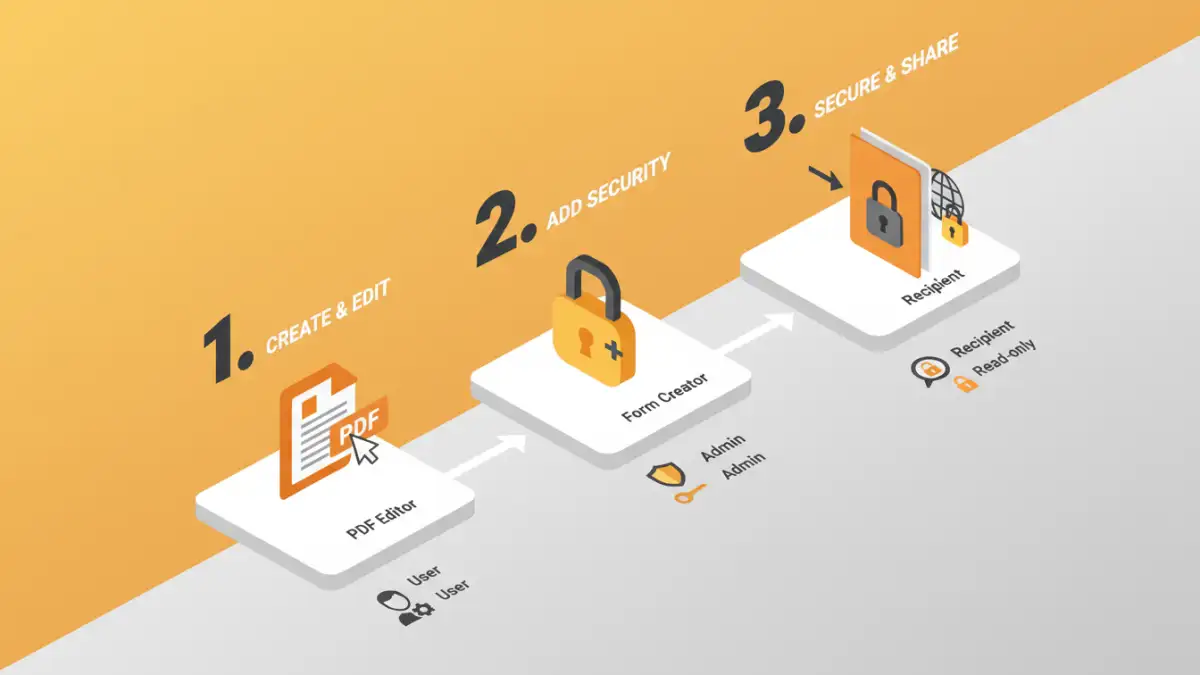
The primary goal when securing sensitive fields in fillable PDFs is to control who can see and modify what information. This often involves distinguishing between fields that should be editable by the end-user and those that should remain static or be pre-filled by the creator. Without proper protection, confidential data like social security numbers, financial details, or personal identifiers could be exposed or tampered with.
Common Vulnerabilities
One of the most common issues arises from the inherent nature of fillable forms. Unless specific restrictions are applied, any user with the PDF can potentially alter the content within any field. This is particularly problematic for fields that are meant to be read-only, like pre-filled identification numbers or dates. Even seemingly innocuous fields can become problematic if they are intended to be static, ensuring consistency across all distributed forms.
Methods for Protecting Fields

Several methods can be employed to protect sensitive fields within your fillable PDF forms. The choice often depends on the PDF editing software you're using and the level of security required.
Using PDF Editor Features
Most professional PDF editing software, such as Adobe Acrobat Pro, offers robust features for form field protection. You can designate specific fields as read-only, preventing any user from changing their content. This is ideal for fields that are pre-populated with information that should not be altered, like a case number or a date of issue.
To implement this, you typically enter the form editing mode, select the specific field, and access its properties. Within the properties, there's usually an option to disable editing or mark the field as read-only. This is a straightforward way to protect fillable pdf forms and ensure data integrity for critical information.
Securing the Entire Document
While not field-specific, password-protecting the entire PDF document is another layer of security. This prevents unauthorized users from opening the document at all. You can often set different passwords for viewing and editing, adding another dimension to document control.
However, if you need to allow editing of some fields while keeping others protected, this method alone isn't sufficient. It's best used in conjunction with field-level restrictions for comprehensive data protection. This approach helps in cases where the entire document contains sensitive information that should only be accessed by authorized personnel.
Advanced Security Measures
Beyond basic read-only settings, more advanced techniques can be employed to secure your PDF forms, especially when dealing with highly sensitive data or when distributing templates that need to be secure from the outset.
JavaScript for Dynamic Protection
For more complex scenarios, JavaScript can be embedded within PDF documents to provide dynamic form field protection. You can write scripts that trigger on specific events, such as form submission or field focus, to validate data, prevent certain characters from being entered, or even dynamically lock fields based on user input or roles.
This approach requires a deeper understanding of JavaScript and PDF scripting capabilities. It allows for granular control, such as ensuring that a social security number field only accepts a specific format and locks after input. This is a powerful method for ensuring data entry security that goes beyond static settings.
Digital Signatures and Encryption
Digital signatures offer a way to verify the authenticity and integrity of a document. While they don't directly protect fields from being edited by the document creator, they ensure that the document hasn't been tampered with since it was signed. For data that needs to remain confidential even when the document is shared, encrypting the PDF using strong algorithms is essential.
Many PDF editors allow you to encrypt documents with passwords that are much harder to crack than simple ones. This encryption applies to the entire document but is a vital step in protecting the sensitive data contained within any of its fields.
Best Practices for Secure Forms
Implementing effective security measures for your fillable PDF forms involves more than just applying technical settings. A holistic approach ensures that your data remains protected throughout its lifecycle.
Minimize Sensitive Fields
The less sensitive information you collect, the less risk you incur. Review your forms and eliminate any fields that are not absolutely necessary for the purpose of the form. This principle of data minimization is a fundamental aspect of privacy and security.
Clear User Instructions
Provide clear instructions to users about which fields are mandatory, which are optional, and which are pre-filled and should not be changed. This helps prevent accidental alterations and ensures users understand the form's structure and security features. Good instructions can significantly reduce errors and security breaches.
Regularly Update Software
Ensure that the PDF editing software you use is always up-to-date. Software vendors frequently release patches to address security vulnerabilities. Keeping your tools current is a proactive step in protecting your documents and the sensitive data they contain.
Comparison Table
| Method | Ease of Use | Security Level | Flexibility | Use Case |
|---|---|---|---|---|
| Read-Only Field Property | Very Easy | Moderate | High (per field) | Preventing alteration of specific pre-filled data |
| Password Protection (View/Edit) | Easy | High (document-wide) | Moderate (all or nothing) | Restricting access to the entire document |
| JavaScript Validation/Locking | Complex | Very High | Very High (customizable) | Implementing custom logic, dynamic field behavior |
| Document Encryption | Moderate | Very High (content confidentiality) | High (applies to all content) | Ensuring data remains unreadable without a key/password |