That moment of relief is fantastic. You've just managed to get past a forgotten password on a critical VBA project. Whether it was a legacy file from a former colleague or one you locked yourself years ago, you're finally back in. But the job isn't finished. In fact, the most important work begins now.
Simply regaining access without a plan is like finding a spare key to a house but not checking if the locks are still secure. Your next few actions will determine the future security, stability, and maintainability of the project. It's the perfect opportunity to move from recovery to improvement.
Table of Contents
Immediate Actions: The First 15 Minutes
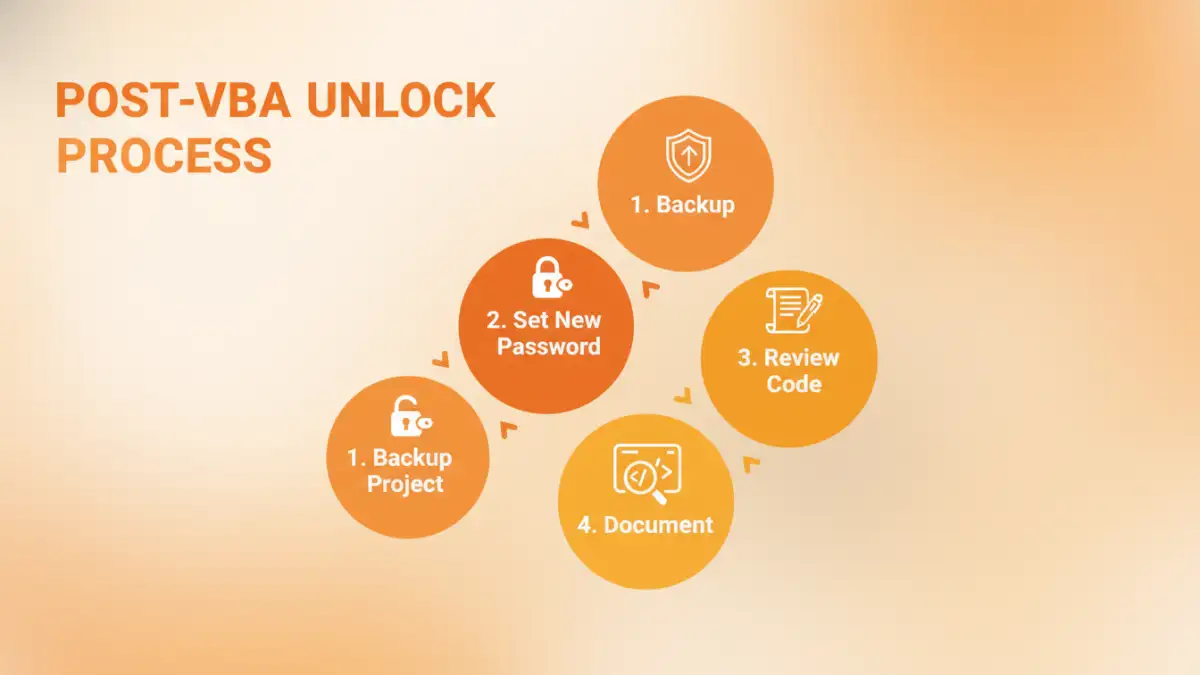
Before you change a single line of code or celebrate your victory, there are a few non-negotiable steps to take immediately. These actions create a safety net, ensuring you don't accidentally make a bad situation worse.
1. Create an Immediate Backup
This is the single most important first step. Before you do anything else, save a copy of the now-unlocked file with a clear name like `ProjectName_Unlocked_Backup_YYYY-MM-DD.xlsm`. This version is your baseline. If any subsequent changes introduce errors or you accidentally re-lock yourself out, you have a clean, accessible version to return to. I've seen situations where a developer gets in, starts tinkering, and creates a new problem with no way to revert. Don't be that person.
2. Verify Code Integrity
Quickly scan through the VBA project. Does everything look as you expect? Check the modules, user forms, and class modules. The goal here isn't a deep code review but a quick check to ensure the unlocking process didn't corrupt or alter any part of the project. This is rare with modern methods, but it's a worthwhile two-minute check for peace of mind.
Securing Your Unlocked VBA Project

With a backup safely stored, your next priority is to properly secure the project. Leaving it unprotected is rarely the right answer, especially if it contains sensitive logic or connects to other systems. This is where you can establish good security practices moving forward.
Setting a New, Strong Password
If the project requires protection, you need to set a new password immediately. Don't reuse the old one (if you remember it) or something simple like '1234'. A strong password for a VBA project should be memorable to you but difficult for others to guess. Consider a passphrase—a short, unique sentence—that includes a mix of cases, numbers, and symbols. The goal is to find a balance between security and accessibility for authorized developers. Document this new password in a secure location, like a team password manager.
Implementing Backup and Version Control
A single backup file is good for immediate recovery, but a long-term strategy is better. For important projects, I strongly recommend using version control like Git. While Excel files are binary and don't 'diff' well, Git is still invaluable for tracking changes, maintaining different versions, and collaborating. You can export the VBA modules as text files (`.bas`, `.frm`) to track code changes more effectively. This provides a historical record of your project that is far more robust than a folder of timestamped files.
Long-Term Project Health and Maintenance
Regaining access is the perfect catalyst for improving the overall quality of the VBA project. This is your chance to pay down technical debt and make the project easier for the next person (which might be you in six months) to understand and manage.
Conduct a Thorough Code Review
Now that you can see everything, take the time to understand what the code does. A formal code review can uncover bugs, performance bottlenecks, and unused subroutines or functions. I often find redundant code or inefficient loops in old projects that can be refactored for significant speed improvements. This cleanup is a crucial part of responsible `vba project maintenance`.
Document Everything
Was the project hard to understand? If so, you have the power to fix that. Go through the code and add comments explaining the 'why' behind complex logic, not just the 'what'. Consider creating a separate document that outlines the project's purpose, its main functions, any external dependencies (like database connections or file paths), and instructions on how to use it. This documentation is invaluable for future troubleshooting and development.
Common Mistakes to Avoid After Unlocking
It's easy to make a misstep after you finally remove a VBA password. Here are a few common pitfalls I've observed that you should actively avoid.
- Leaving the Project Unlocked: If the code is proprietary or sensitive, leaving it unprotected is a significant risk. Always re-secure it unless it's explicitly meant to be open.
- Forgetting to Document the New Password: You went through the trouble of unlocking it once. Don't force yourself or your team to do it again. Store the new password securely.
- Making Major Changes Without a Backup: Never underestimate the potential to introduce new bugs. Always work from a copy or have a solid version control system in place before you start refactoring.
- Ignoring the Opportunity to Improve: Simply re-locking the project with a new password and moving on is a missed opportunity. Use this moment to review, clean, and document the code.
Post-Unlock Action Plan
| Action Item | Priority | Estimated Effort | Impact |
|---|---|---|---|
| Create a Backup | Critical | Low (< 2 minutes) | High (Prevents data loss) |
| Set a New Strong Password | High | Low (5 minutes) | High (Secures project) |
| Document the New Password | High | Low (2 minutes) | High (Ensures future access) |
| Perform a Code Review | Medium | Medium (1-3 hours) | High (Improves stability) |
| Add Code Comments & Docs | Medium | Medium (1-2 hours) | High (Enhances maintainability) |
| Implement Version Control | Recommended | High (Initial setup) | Very High (Long-term tracking) |