
I recently helped a colleague recover a critical project proposal that was left unsecured on a shared drive. This common oversight underscored for me, yet again, just how vital it is to secure sensitive information. While many assume robust security means hefty software investments, I've found over my years in software engineering that there are surprisingly effective ways to password protect documents free of charge, leveraging tools you might already have or easily access.
Table of Contents
Why Document Security is Non-Negotiable
With increasing cyber threats and regulatory requirements like GDPR and HIPAA, neglecting document security is a risk no individual or organization can afford. Data breaches can lead to significant financial penalties, reputational damage, and loss of trust. Even seemingly innocuous documents can contain sensitive personal or proprietary information that requires protection.
Strong document encryption protects your sensitive information from unauthorized access, ensuring that only those with the correct password can view or modify its contents. This is crucial whether you're sharing files with clients, storing personal financial records, or collaborating on confidential projects. Implementing basic file security measures is a fundamental step in a comprehensive cybersecurity strategy.
Built-in Methods for Quick Protection

Many operating systems and popular software suites offer native features to secure documents without needing additional downloads. These methods are often overlooked but provide a convenient and immediate way to add a layer of protection to your files. Leveraging these built-in options is a smart first step towards free file security.
Microsoft Office Suite Protection
For Word, Excel, and PowerPoint documents, Microsoft Office provides straightforward password protection. Within any Office application, navigate to 'File' > 'Info' > 'Protect Document/Workbook/Presentation'. You can then choose 'Encrypt with Password' to set a password for opening the document or restrict editing. This is an excellent way to secure document creation right from the source.
It's important to choose a strong, unique password, as there's no recovery option if you forget it. This method works well for sharing documents among Office users, ensuring that only intended recipients can access the content. I've often recommended this for internal team documents containing sensitive project details.
PDF Encryption via Print Dialog
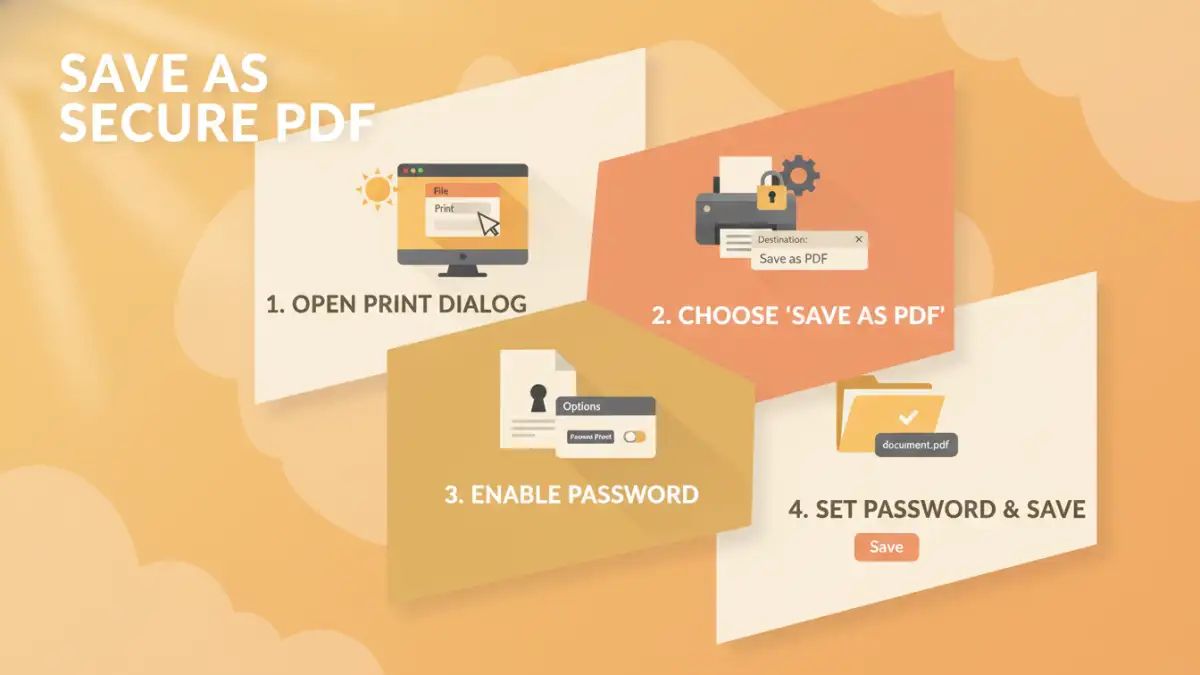
If you need to password protect documents free and convert them to PDF, many operating systems offer a trick. When you 'Print' a document, instead of choosing a physical printer, select 'Microsoft Print to PDF' (Windows) or 'Save as PDF' (macOS). Some of these dialogs, or subsequent PDF editor features, will provide an option to add a password before saving the new PDF file.
While this isn't always a direct encryption feature in the 'Print to PDF' step itself, many modern PDF viewers and basic editors (like Adobe Acrobat Reader's 'Protect' feature or Preview on macOS) allow you to add a password to an existing PDF for free. This is a simple yet effective method for basic document protection.
Leveraging Free Online Tools Responsibly
The internet abounds with free online tools designed to help you password protect documents free of charge. These services are incredibly convenient for quick tasks and can handle various file types, including PDFs, Word documents, and images. However, it's crucial to approach them with a healthy dose of caution regarding privacy and data handling.
Tools like Smallpdf, iLovePDF, and PDF24 Tools offer features to encrypt PDFs, merge, split, and convert documents, often including password protection options. They are generally user-friendly, requiring you to upload your file, set a password, and then download the protected version. Always read their privacy policy to understand how your data is handled and for how long it's stored on their servers.
Choosing the Right Online Service
When selecting an online tool for document protection, prioritize those with strong reputations and clear privacy statements. Look for services that emphasize immediate deletion of uploaded files after processing. For highly sensitive data, I generally advise against using online services unless absolutely necessary and after thorough vetting. For less critical documents, these tools offer a quick and efficient solution for secure document creation.
Open-Source Desktop Software Options
For those who prefer not to upload their sensitive documents to online platforms, or who need more robust and consistent control, open-source desktop software provides powerful alternatives. These tools are typically free to use and install directly on your computer, offering greater peace of mind regarding data privacy and security.
Software like VeraCrypt (for creating encrypted containers or volumes) or specific PDF editors (like PDF Arranger or some versions of LibreOffice) can offer advanced encryption features. While they might have a steeper learning curve than online tools, they provide comprehensive free file security without relying on third-party servers. VeraCrypt, in particular, is a robust solution for encrypting entire drives or creating virtual encrypted disks.
Best Practices for Ironclad Document Protection
Beyond choosing the right tools, adopting a few best practices can significantly enhance your document security. Remember that technology is only as strong as the habits of its users. Implementing these steps will help you maintain a high level of protection across all your sensitive files.
- Use Strong, Unique Passwords: Avoid common words, personal information, or easily guessable sequences. Opt for long, complex passwords that combine uppercase and lowercase letters, numbers, and symbols. A password manager can help you generate and store these securely.
- Regularly Update Software: Keep your operating system and all applications, especially those handling sensitive data, up to date. Software updates often include critical security patches that protect against newly discovered vulnerabilities.
- Backup Encrypted Documents: Always create secure backups of your important files, including the encrypted versions. Losing access to a document because of a corrupted file or forgotten password can be disastrous. Ensure backups are also stored securely.
- Be Wary of Phishing: Never open password-protected documents from unknown or suspicious sources, as they could be malware. Always verify the sender's identity before attempting to access any secure document.
- Review Access Permissions: Regularly check who has access to your shared documents and revoke permissions for those who no longer need them. This is a basic but often overlooked aspect of document protection tools.
Comparison Table: Free Document Protection Methods
| Method | Pros | Cons | Best For |
|---|---|---|---|
| Microsoft Office Built-in | Convenient, familiar interface, no extra software | Limited to Office files, password recovery difficult | Word, Excel, PowerPoint documents |
| PDF Print Dialog Trick | Free, works across OS, no uploads needed | Basic protection, not all systems support direct password addition | Simple PDF creation from other documents |
| Online Tools (e.g., Smallpdf) | User-friendly, fast, supports various file types | Privacy concerns, reliance on third-party servers | Quick, non-highly sensitive PDF encryption |
| Open-Source Desktop Software (e.g., VeraCrypt) | High security, full control, no data upload | Steeper learning curve, requires installation | Highly sensitive data, comprehensive file security |