
We've all been there: you diligently secure an important document with a strong password, tuck it away, and then, when you finally need it, that crucial password has vanished from your memory. It's a frustrating, even panic-inducing, experience, especially when deadlines loom or the information is critical. Over my years in software engineering, I've seen countless colleagues and clients grapple with this exact problem, and thankfully, there are often ways to navigate this digital lockout.
Regaining access to your encrypted files doesn't always require a magic wand. Often, it involves a systematic approach, understanding the type of encryption, and knowing which tools or tricks might apply. This article will walk you through various methods, from simple self-help options to more advanced techniques, ensuring you're equipped to tackle a forgotten document password scenario head-on.
Table of Contents
The Inevitable Lockout: Why Passwords Go Astray
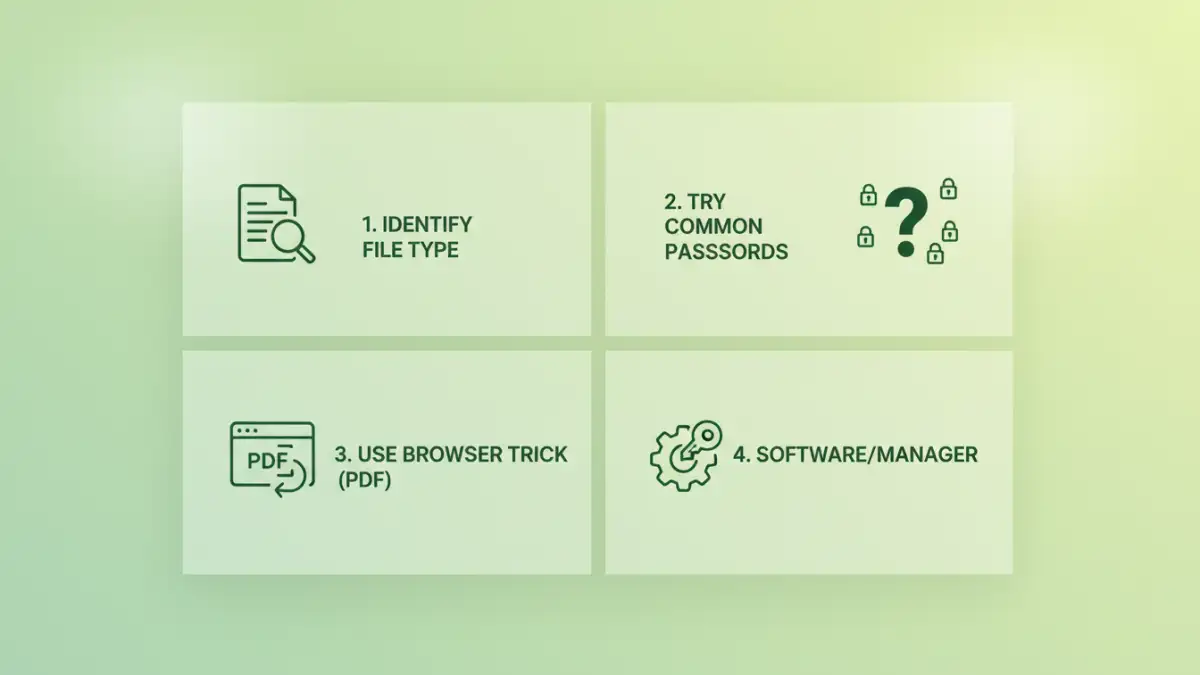
It’s easy to feel a pang of self-reproach when you can't recall a password, but it happens to the best of us. The sheer volume of digital credentials we manage today makes it almost inevitable that one will slip through the cracks. Whether it's a rarely used archive, a file from an old project, or simply a moment of distraction when setting it, a forgotten document password is a common hurdle.
The good news is that while encryption is designed to be robust, some common document types, particularly those from older software versions or with certain types of password protection, can sometimes be more forgiving than others. Understanding the nature of your locked document is the first step towards recovery.
Understanding Document Encryption Basics
When you password-protect a document, you're essentially encrypting its contents. This scrambles the data, making it unreadable without the correct key – your password. Different applications and file formats use varying encryption algorithms.
For example, a Microsoft Word document might use AES encryption, while a PDF could have both 'user' (for opening) and 'owner' (for editing/printing) passwords. Knowing which type of file you're dealing with can significantly narrow down the potential recovery options and tools available for encrypted file access.
Initial Steps for Document Password Recovery
Before resorting to more complex solutions, it's always wise to try some basic troubleshooting. Many times, the solution is simpler than you think. I've often helped people recover access by just running through a short checklist of common password mistakes or forgotten details.
Think about any password hints you might have set, or if you tend to reuse variations of a few strong passwords. Sometimes, it's a simple typo, a forgotten capitalization, or a number swapped for a symbol. Try a few common variations before assuming the worst.
Leveraging Built-in Application Features
Some software applications offer limited recovery or access options, especially if you have the original application and operating system. For instance, if you're dealing with a password-protected Excel spreadsheet or Word document, the application itself might have a 'remove password' or 'change password' feature if the file is currently open and unlocked by another means (which, in this scenario, is unlikely, but worth noting for future prevention).
For PDFs, if you only have an 'owner' password preventing printing or editing (but not opening), some PDF viewers or even web browsers can help you bypass this. This isn't a true password recovery but rather a way to gain secure file access to the content's functionality.
Exploring Advanced Password Retrieval Methods
When the simple tricks don't work, it's time to consider more robust document password recovery techniques. These methods often involve external tools or specific software designed to tackle encrypted documents. It's important to proceed with caution and understand the implications, especially regarding data privacy if using online services.
From my experience, the effectiveness of these methods heavily depends on the password's complexity and the encryption strength of the document. A very short, simple password will be much easier to crack than a long, complex one using modern encryption standards.
Utilizing Browser-Based PDF Tricks
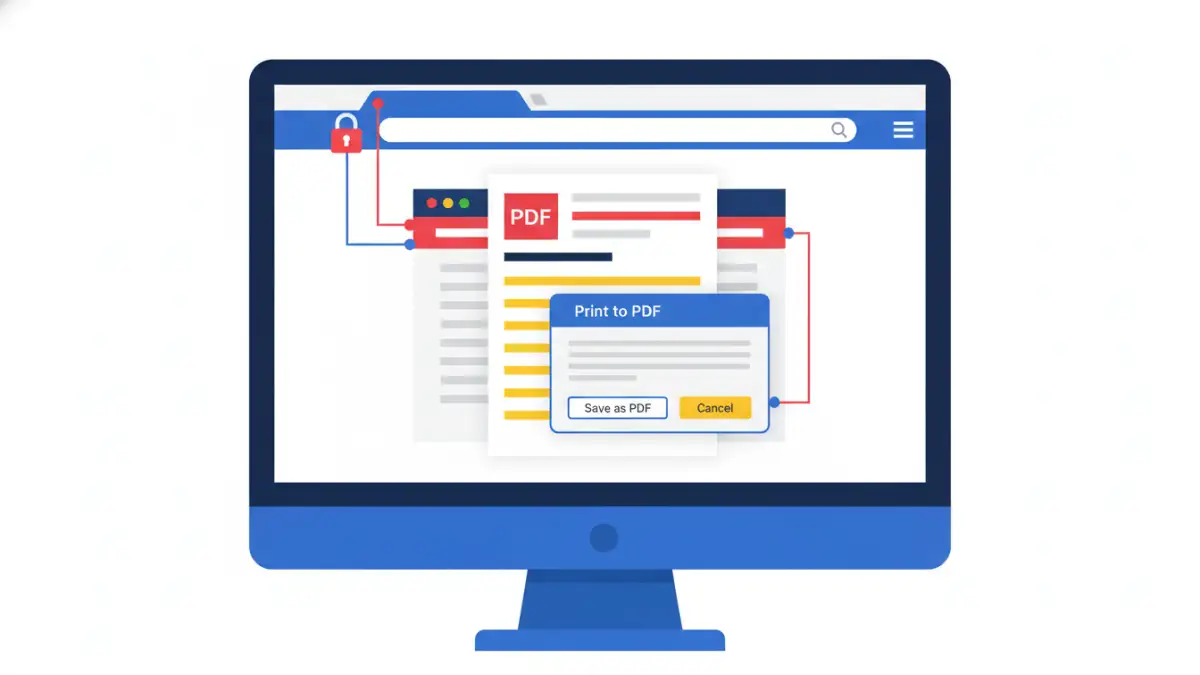
For PDFs specifically, a common 'trick' for removing an 'owner' password (which restricts actions like printing or copying, but doesn't prevent opening the document) involves using a web browser. This method won't help if you have a forgotten document password that prevents you from *opening* the PDF in the first place, but it's invaluable for other restrictions.
Simply open the password-protected PDF in a modern web browser like Chrome or Edge. If it opens, locate the 'Print' option. Instead of printing to a physical printer, choose 'Save as PDF' or 'Microsoft Print to PDF.' This process essentially prints the document to a new, unprotected PDF file, effectively removing the owner-level restrictions. It's a neat workaround for certain types of password help.
Online Tools and Desktop Software
There are numerous online services and desktop applications that claim to help with document password recovery. Online tools are convenient, often requiring you to upload your file, and they handle the cracking process on their servers. However, this comes with significant privacy risks. Uploading sensitive, encrypted documents to an unknown third-party service should always be approached with extreme caution.
Desktop software, on the other hand, runs locally on your machine. These tools often employ brute-force attacks (trying every possible combination) or dictionary attacks (trying common words and phrases). While more secure from a privacy standpoint, they can be resource-intensive and take a very long time, especially for strong passwords. Some popular options include programs for Office documents or specific PDF password crackers.
Proactive Measures: Preventing Future Forgotten Document Password Scenarios
The best recovery strategy is prevention. After going through the stress of a forgotten document password, you'll likely want to ensure it doesn't happen again. As a software engineer, I can't stress enough the importance of good password hygiene and secure management practices.
Implementing a few key habits can save you immense frustration down the line. It's about balancing security with accessibility, making sure your documents are protected but still retrievable by you when needed.
The Role of Password Managers
A robust password manager is arguably the most effective tool for preventing a forgotten document password. These applications securely store all your passwords in an encrypted vault, accessible only by a single master password. They can generate complex, unique passwords for each document and service, and then automatically fill them in when needed.
Using a password manager means you only have one password to remember – the master password for the manager itself. This significantly reduces the risk of forgetting individual document passwords and enhances your overall digital security, providing excellent password help for encrypted file access.
Method Comparison: Pros and Cons of Different Approaches
| Method | Pros | Cons | Best For |
|---|---|---|---|
| Browser Trick (PDF Owner Password) | Free, no software needed, quick | Only removes owner password, doesn't open locked files | Removing print/edit restrictions on already open PDFs |
| Online Password Removal Tools | Easy to use, fast processing (for simple passwords) | Significant privacy concerns, limited features, cost for complex cases | Non-sensitive documents with simple user passwords |
| Desktop Password Recovery Software | Powerful, local processing, handles various file types | Can be expensive, steep learning curve, time-consuming for strong passwords | Sensitive documents where privacy is paramount, complex password recovery |
| Password Managers | Secure storage, auto-generation, eliminates forgotten passwords | Requires initial setup, subscription costs for premium features | Long-term proactive password management and prevention |