Working with password-protected documents can be frustrating, especially when you've forgotten the password or need to access a file urgently. Over the years, I've encountered numerous situations where a locked PDF was a significant roadblock. Fortunately, the digital landscape offers several solutions, from clever workarounds to dedicated software, that can help you regain access. It's crucial, however, to approach these methods with caution, understanding the security implications and choosing reputable tools.
This article delves into some of the most effective and accessible ways to handle password-protected PDFs, focusing on options that are free and readily available. We'll explore different techniques, their pros and cons, and when each might be the most suitable choice for your needs.
Table of Contents
Understanding PDF Password Protection
PDFs can have two main types of passwords: owner passwords and user passwords. An owner password restricts certain actions like printing, copying text, or editing the document, even if you can open it. A user password, often called an open password, prevents anyone from opening the PDF without entering the correct code.
Types of PDF Passwords
The distinction is critical because tools that can remove an owner password might not be able to bypass a user password, and vice-versa. For instance, many free pdf password remover tools are effective against owner passwords, which are typically less stringent. Bypassing a user password often requires more sophisticated methods or brute-force techniques, which are not always available in free solutions.
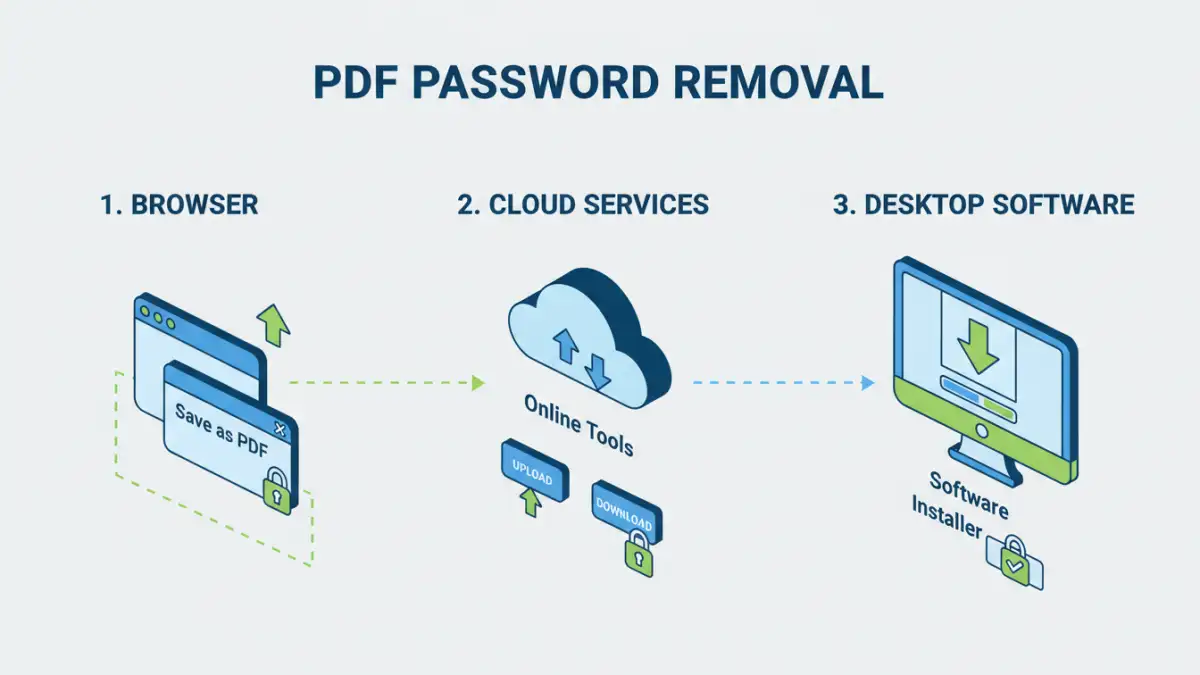
The Browser 'Print to PDF' Method
One of the most accessible methods, especially for PDFs with owner restrictions, involves using your web browser's print functionality. This technique essentially 'recreates' the PDF without the restrictions by printing it to a new PDF file. It's a clever workaround that doesn't require any special software.
Steps to Unlock with Browser Print
Open the password-protected PDF in a compatible viewer (like Adobe Reader or even Chrome/Edge). If the PDF allows printing (meaning it only has an owner password), go to File > Print. In the printer selection dialog, choose 'Save as PDF' or 'Microsoft Print to PDF' as your printer. Click 'Print,' and you'll be prompted to save a new PDF file. This new file will be an unlocked version, free from the original owner restrictions.
Reputable Online PDF Password Removers
For quick, on-the-go solutions, several online tools can help you unlock PDF files free. These platforms are generally user-friendly: you upload your document, the tool processes it, and you download the unlocked version. However, it's vital to use well-regarded services to protect your privacy and data.
Popular Online Services
Sites like Smallpdf, iLovePDF, and PDF2Go offer dedicated features to remove PDF passwords. They typically work well for owner passwords. For user passwords, some might offer brute-force cracking, but this can take a very long time and isn't guaranteed. Always check the service's privacy policy before uploading sensitive documents.
Desktop Software Options
While online tools are convenient, desktop software often provides more robust features and better security, as your files don't leave your computer. Some of these tools are free, while others are paid with free trial versions.
Free and Paid Software
For removing owner passwords, many PDF editors offer this functionality. If you're dealing with a forgotten user password, specialized software designed for password recovery might be necessary. These often employ brute-force or dictionary attacks. Tools like Passware or PDF Password Remover offer advanced capabilities, though many come with a cost. Always ensure you are downloading software from the official vendor to avoid malware.
Important Considerations
When choosing a method to remove PDF passwords, several factors come into play. The type of password (user vs. owner) is the primary determinant of success. Your comfort level with online tools versus desktop software also matters, especially concerning data privacy.
Security and Privacy
Uploading sensitive documents to online services carries inherent risks. Even reputable sites can be targets for data breaches. Therefore, for confidential files, using offline methods or trusted desktop applications is generally safer. If a file is not sensitive, online tools can be a quick and efficient option to unlock pdf free.
Best Practices for Document Security
Preventing the need for password removal in the first place is always the best strategy. Use strong, unique passwords for your documents and store them securely. Consider using password managers to keep track of complex passwords. If you're sharing documents that require protection, clearly communicate the password separately through a secure channel.
Comparison Table: PDF Password Removal Methods
| Method | Pros | Cons | Best For |
|---|---|---|---|
| Browser 'Print to PDF' | Free, No extra software, Quick for owner passwords | Only works for owner passwords, May lose some formatting | Removing print/edit restrictions |
| Online PDF Tools | Convenient, Accessible anywhere, Easy to use | Privacy concerns, limited for user passwords, internet required | Quickly unlocking non-sensitive PDFs |
| Desktop Software (Free) | More control, Files stay local, Handles owner passwords | Might lack advanced features, Some require installation | Regular use, owner password removal |
| Desktop Software (Paid/Recovery) | Powerful, Handles user passwords, High success rate | Costly, Can be complex, Requires installation | Recovering forgotten user passwords, sensitive documents |